A Guide to Deploying Onyxia On-Premises (part 1): basic installation and user account management with Keycloak
Onyxia is an open-source project led by INSEE (France), originally created to simplify the setup of a working environment for the institute’s staff. Onyxia provides a web application to launch and configure working environments. It allows users to select tools (VSCode, Jupyter, etc.), resources (CPU, GPU, and RAM), and connect storage services (such as S3) without having to directly manage the complexities of the underlying cloud or infrastructure.
Onyxia is built on Kubernetes. Working environments are packaged as Helm charts and can be configured through the web interface provided by Onyxia. INSEE offers an instance of Onyxia called SPPCloud, which is free for all French public administrations. However, this instance is not configurable, and resources must be shared among a growing number of users.
Installing an Onyxia instance on a Kubernetes cluster is possible, and this is the objective of this blog post. The installation documentation for Onyxia is very well written, but it is somewhat too generic to address specific use cases, and in any case it would not be realistic to cover every possible scenario. In addition, the documentation is not always up to date, and the latest versions of third-party tools such as Keycloak and Vault are not always available.
In this blog post, we adopt an incremental approach, starting with the installation of Onyxia, followed by the addition and integration of the identity and authentication manager Keycloak. In the specific case of Keycloak, we will first detail implicit user management through Keycloak, before presenting the configuration required to federate an external identity source that supports OpenID.
Additional topics may be covered in future posts, including the installation and integration of S3 storage, secrets management with Vault, and the use of Prometheus for monitoring the Kubernetes cluster. Building on this foundation, we will also put in place resource allocation strategies to prevent, for example, the monopolization of critical resources such as GPUs. Finally, we will later explore how to create custom services.
Lastly, unlike the official Onyxia documentation, which relies on Argo CD for deployment, we will perform all operations here using the command-line tool kubectl. Although the Argo CD approach is recommended for production environments, the goal of this post is to provide a simple initial installation to discover and test the Onyxia platform.
Note: this blog post was written by a human, and the screenshots were taken from a running application. The English version was assisted by artificial intelligence, based on the French version available: https://mickael-baron.fr/blog/2026/01/13/setup-onyxia-onpremise-fr.
Prerequisites
To implement all the elements presented, you will need a Kubernetes cluster. On this topic, I invite you to consult the two blog posts that I have already published.
- A step-by-step pratical guide for deploying NVIDIA GPUs on Kubernetes
- Advanced Kubernetes Deployment on an NVIDIA GPUs Cluster
You will also need to have a domain name. In this example, we will use the fictitious domain: *.mydomain.fr.
Getting Started with Onyxia
This section describes the configuration and installation of Onyxia using a Helm chart. UI customization is the only configuration step covered here. Other settings will be addressed later, after setting up the authentication system with Keycloak.
Onyxia Installation
- Create a minimal onyxia-values.yaml file to ensure that the installation runs smoothly. This way, a single user will be defined and the appearance will keep the default settings.
1
2
3
4
5
6
7
8
9
10
11
12
13
14
15
16
17
18
19
20
21
22
23
24
ingress:
  enabled: true
  hosts:
    - host: onyxia.mydomain.fr
web:
  env:
api:
  regions:
    [
      {
        id: "onyxia_id",
        name: "Onyxia",
        description: "Instance Onyxia de TEST.",
        services: {
          type: "KUBERNETES",
          singleNamespace: true,
          authenticationMode: "serviceAccount",
          namespacePrefix: "onyxia-user-",
          expose: {
            domain: "lab-onyxia.mydomain.fr"
          },
        },
      },
    ]
- Add the Onyxia Helm repository to the local Helm configuration and verify that this repository is available.
1
2
helm repo add onyxia https://inseefrlab.github.io/onyxia
helm repo list
The expected result is as follows:
1
2
3
4
5
6
NAME                  	URL
ingress-nginx         	https://kubernetes.github.io/ingress-nginx
nvidia                	https://helm.ngc.nvidia.com/nvidia
onyxia                	https://inseefrlab.github.io/onyxia
prometheus-community  	https://prometheus-community.github.io/helm-charts
...
- Deploy the Onyxia chart in version 10.28.9.
1
helm install onyxia onyxia/onyxia -f onyxia-values.yaml --version 10.28.9 --create-namespace --namespace onyxia
The expected result is as follows:
1
2
3
4
5
6
7
NAME: onyxia
LAST DEPLOYED: Fri Oct  3 17:26:00 2025
NAMESPACE: onyxia
STATUS: deployed
REVISION: 1
NOTES:
Enjoy Onyxia :)
Two pods should be created: one for the server part, which provides the API, and the other for the user interface part.
- Test the availability of these two pods using the following command line.
1
kubectl get pods -n onyxia
The expected result is as follows:
1
2
3
NAME                          READY   STATUS    RESTARTS   AGE
onyxia-api-54594bb97d-xxzcq   1/1     Running   0          28m
onyxia-web-67666469d8-27xpb   1/1     Running   0          28m
- Open a web browser and enter the following URL: https://onyxia.mydomain.fr
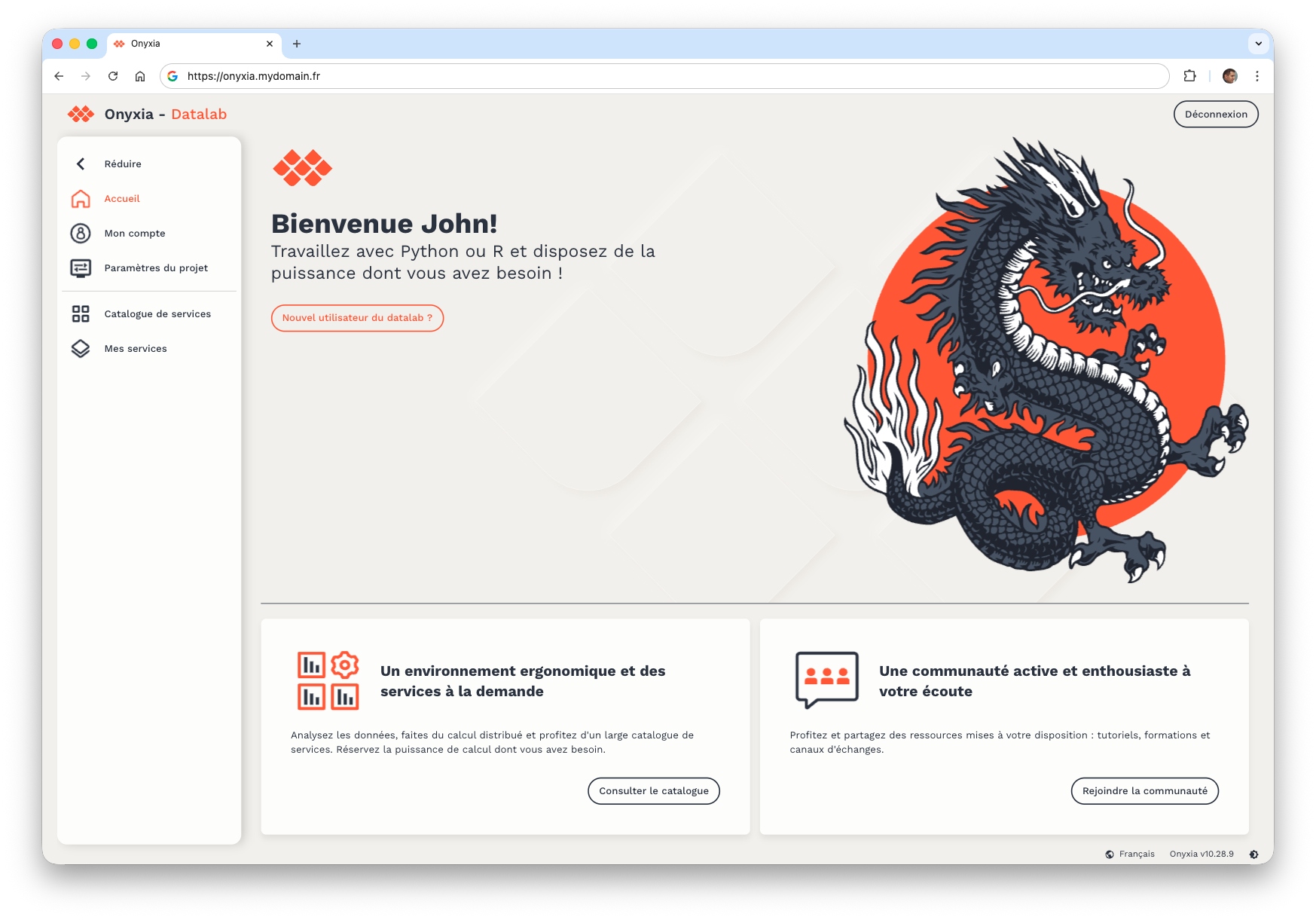
You will notice the current version of Onyxia (10.28.9) in the bottom right corner.
Mise à jour de la version de Onyxia
When version or configuration updates for Onyxia are required, which happens regularly, simply follow the steps below to apply them.
- Force the repository update
1
helm repo update onyxia
The expected result is as follows:
1
2
3
Hang tight while we grab the latest from your chart repositories...
...Successfully got an update from the "onyxia" chart repository
Update Complete. ⎈Happy Helming!⎈
- Display the available versions of the Onyxia repository.
1
helm search repo onyxia -l
The expected result is as follows:
1
2
3
4
5
6
7
8
NAME         	CHART VERSION	APP VERSION	DESCRIPTION
onyxia/onyxia	10.29.2      	           	Onyxia is your datalab's hub.
onyxia/onyxia	10.29.1      	           	Onyxia is your datalab's hub.
onyxia/onyxia	10.29.0      	           	Onyxia is your datalab's hub.
onyxia/onyxia	10.28.10     	           	Onyxia is your datalab's hub.
onyxia/onyxia	10.28.9      	           	Onyxia is your datalab's hub.
onyxia/onyxia	10.28.8      	           	Onyxia is your datalab's hub.
...
- Update the Onyxia version by specifying the desired version.
1
helm update onyxia onyxia/onyxia -f onyxia-values.yaml --version 10.29.2 --create-namespace --namespace onyxia
Customizing Onyxia
Let’s now focus on customizing the display of the deployed Onyxia instance. This involves completing the elements of the env key from the onyxia-values.yaml file. All parameters are available from the GitHub repository of the project that manages the user interface: onyxia/web/.env. The documentation is well done, as each parameter is accompanied by an illustration showing exactly where it is configured.
- Edit the onyxia-values.yaml file by adding the content of the
envkey.
1
2
3
4
5
6
7
8
9
10
11
12
13
14
15
16
17
18
19
20
21
22
23
24
25
26
27
28
29
30
31
32
33
34
35
36
37
38
39
ingress:
  enabled: true
  hosts:
    - host: onyxia.mydomain.fr
web:
  env:
    HEADER_TEXT_BOLD: Test
    TAB_TITLE: Onyxia Test
    HOMEPAGE_HERO_TEXT: |
      {
        "fr": "Bienvenue dans la version Test",
        "en": "Welcome to the Test version "
      }
    PALETTE_OVERRIDE: |
      {
        focus: {
          main: "#067A76",
          light: "#0AD6CF",
          light2: "#AEE4E3"
        },
        dark: {
          main: "#2D1C3A",
          light: "#4A3957",
          greyVariant1: "#22122E",
          greyVariant2: "#493E51",
          greyVariant3: "#918A98",
          greyVariant4: "#C0B8C6"
        },
        light: {
          main: "#F7F5F4",
          light: "#FDFDFC",
          greyVariant1: "#E6E6E6",
          greyVariant2: "#C9C9C9",
          greyVariant3: "#9E9E9E",
          greyVariant4: "#747474"
        }
      }
api:
    ...
- Update the Onyxia version.
1
helm update onyxia onyxia/onyxia -f onyxia-values.yaml --version 10.29.2 --create-namespace --namespace onyxia
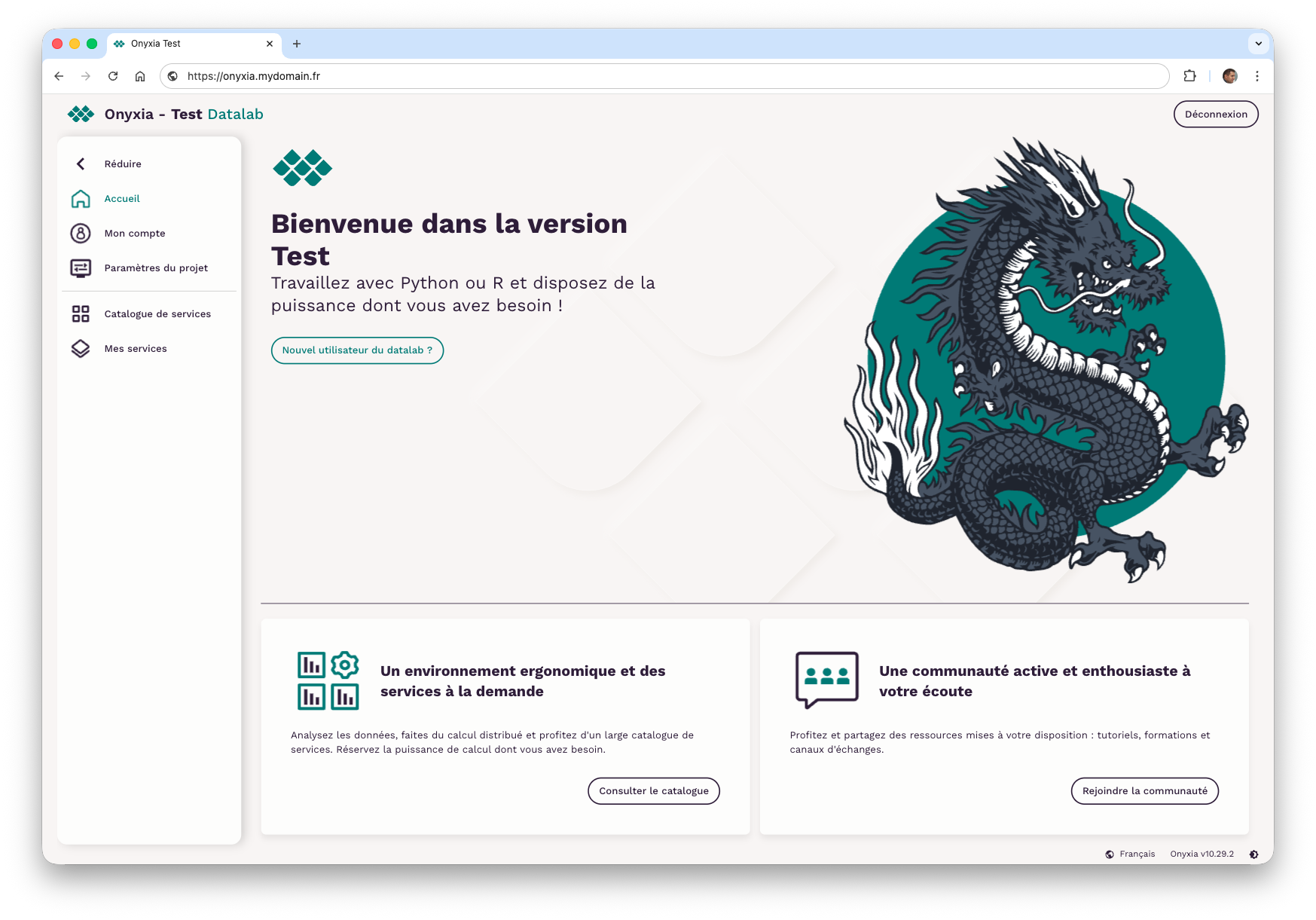
Onyxia with users
Identification (declaring who you are) and authentication (proving that you are indeed who you claim to be) will be delegated to Keycloak. We will use version 26.3.3 of Keycloak from the Helm chart version 25.2.0. Note that since August 2025, Bitnami will only offer a limited set of secure images under the latest tag for free, while older versions will be moved to the bitnamilegacy repository without updates. We will limit ourselves to using version 25.2.0 available in the bitnamilegacy repository.
Keycloak installation
- Create a keycloak-values.yaml file and copy the following content, adapting it to your needs (domain change). Remember to replace
mydomain.frwith the domain you want.
1
2
3
4
5
6
7
8
9
10
11
12
13
14
15
16
17
18
19
20
21
22
23
24
25
26
27
28
29
30
31
32
33
34
35
36
37
38
39
40
41
42
43
44
45
46
47
48
49
50
51
52
53
54
55
56
57
58
59
60
61
62
63
postgresql:
  enabled: true
  image:
    repository: bitnamilegacy/postgresql
  auth:
    postgresPassword: "test"
    username: "keycloak"
    password: "test"
    database: "keycloak"
global:
  security:
    allowInsecureImages: true
image:
  repository: bitnamilegacy/keycloak
auth:
  adminUser: keycloak
  adminPassword: test
production: true
tls:
  enabled: false
  autoGenerated:
    enabled: false
proxyHeaders: xforwarded
proxy: edge
httpRelativePath: "/auth/"
replicaCount: 1
ingress:
  enabled: true
  annotations:
    nginx.ingress.kubernetes.io/proxy-buffer-size: 128k
  hostname: auth.lab-onyxia.mydomain.fr
  extraTls:
    - hosts:
      - auth.lab-onyxia.mydomain.fr

extraStartupArgs: "--features=preview --log-level=org.keycloak.events:debug"
extraEnvVars:
  - name: ONYXIA_RESOURCES_ALLOWED_ORIGINS
    value: "https://onyxia.mydomain.fr, http://localhost, http://127.0.0.1"
  - name: KEYCLOAK_LOG_LEVEL
    value: DEBUG

initContainers: |
  - name: realm-ext-provider
    image: curlimages/curl
    imagePullPolicy: IfNotPresent
    command:
      - sh
    args:
      - -c
      - |
        curl -L -f -S -o /extensions/onyxia-web.jar https://github.com/InseeFrLab/onyxia/releases/download/v10.28.8/keycloak-theme.jar
    volumeMounts:
      - name: empty-dir
        mountPath: /extensions
        subPath: app-providers-dir

externalDatabase:
  host: keycloakv3-postgresql
  port: 5432
  user: keycloak
  password: test
  database: keycloak
This file contains several things: using images from the bitnamilegacy repository while waiting for the latest versions, initialization using initContainers to download a specific theme, and default passwords that must be changed after installation. The subdomain for Keycloak will be auth.lab-onyxia.
1
helm install onyxiakeycloak oci://registry-1.docker.io/bitnamicharts/keycloak --version 25.2.0 -f keycloak-values.yaml --create-namespace --namespace onyxia-keycloak
The expected result is as follows
1
2
3
4
5
6
7
8
9
10
11
12
13
14
15
16
17
18
19
20
21
22
23
24
25
26
27
28
29
30
31
32
33
34
35
36
37
38
39
40
41
42
43
44
45
46
47
Pulled: registry-1.docker.io/bitnamicharts/keycloak:25.2.0
Digest: sha256:3e12451e0300902bafa1e588e62cce8ad3467dc3d6bf15352c25a0393a75fc6e
NAME: onyxiakeycloak
LAST DEPLOYED: Thu Oct  2 17:07:49 2025
NAMESPACE: onyxia-keycloak
STATUS: deployed
REVISION: 1
TEST SUITE: None
NOTES:
CHART NAME: keycloak
CHART VERSION: 25.2.0
APP VERSION: 26.3.3

⚠ WARNING: Since August 28th, 2025, only a limited subset of images/charts are available for free.
    Subscribe to Bitnami Secure Images to receive continued support and security updates.
    More info at https://bitnami.com and https://github.com/bitnami/containers/issues/83267

** Please be patient while the chart is being deployed **

Keycloak can be accessed through the following DNS name from within your cluster:

    onyxiakeycloak.onyxia-keycloak.svc.cluster.local (port 80)

To access Keycloak from outside the cluster execute the following commands:

1. Get the Keycloak URL and associate its hostname to your cluster external IP:

   export CLUSTER_IP=$(minikube ip) # On Minikube. Use: `kubectl cluster-info` on others K8s clusters
   echo "Keycloak URL: http://auth.lab-onyxia.mydomain.fr/"
   echo "$CLUSTER_IP  auth.lab-onyxia.mydomain.fr" | sudo tee -a /etc/hosts

2. Access Keycloak using the obtained URL.
3. Access the Administration Console using the following credentials:

  echo Username: keycloak
  echo Password: $(kubectl get secret --namespace onyxia-keycloak onyxiakeycloak -o jsonpath="{.data.admin-password}" | base64 -d)

WARNING: There are "resources" sections in the chart not set. Using "resourcesPreset" is not recommended for production. For production installations, please set the following values according to your workload needs:
  - resources
+info https://kubernetes.io/docs/concepts/configuration/manage-resources-containers/

⚠ SECURITY WARNING: Original containers have been substituted. This Helm chart was designed, tested, and validated on multiple platforms using a specific set of Bitnami and Tanzu Application Catalog containers. Substituting other containers is likely to cause degraded security and performance, broken chart features, and missing environment variables.

Substituted images detected:
  - docker.io/bitnamilegacy/keycloak:26.3.3-debian-12-r0

⚠ SECURITY WARNING: Verifying original container images was skipped. Please note this Helm chart was designed, tested, and validated on multiple platforms using a specific set of Bitnami and Bitnami Secure Images containers. Substituting other containers is likely to cause degraded security and performance, broken chart features, and missing environment variables.
Two pods should be created: one for the PostgreSQL database and one for Keycloak. Since the latter takes a long time to start, test the availability of the pods using the following command line.
1
kubectl get pods -n onyxia-keycloak
Le résultat attendu
1
2
3
NAME                          READY   STATUS    RESTARTS        AGE
onyxiakeycloak-0              1/1     Running   1 (8m13s ago)   10m
onyxiakeycloak-postgresql-0   1/1     Running   0               10m
- Open a web browser and enter the following URL: https://auth.lab-onyxia.mydomain.fr/auth.
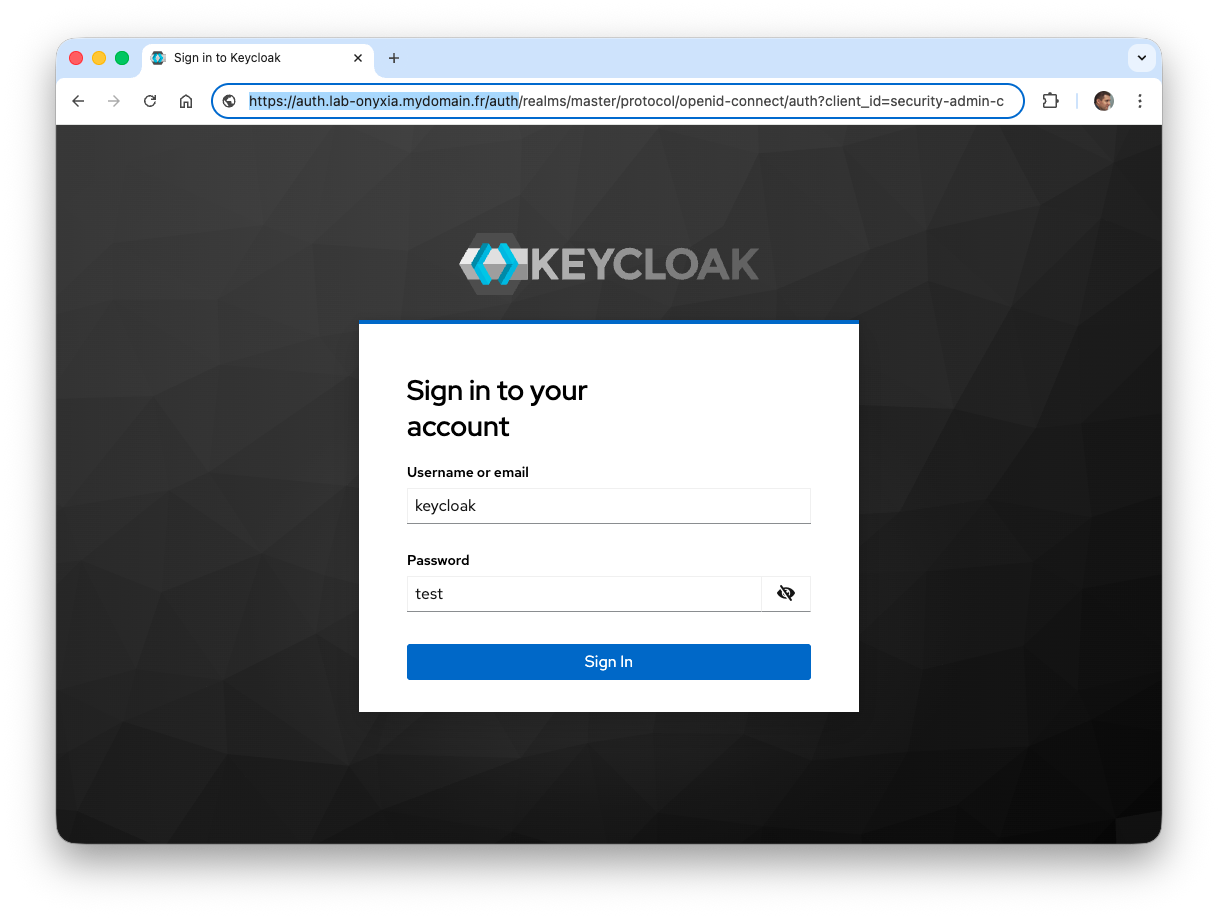
The username and password were specified in the keycloak-values.yaml file as keycloak and test.
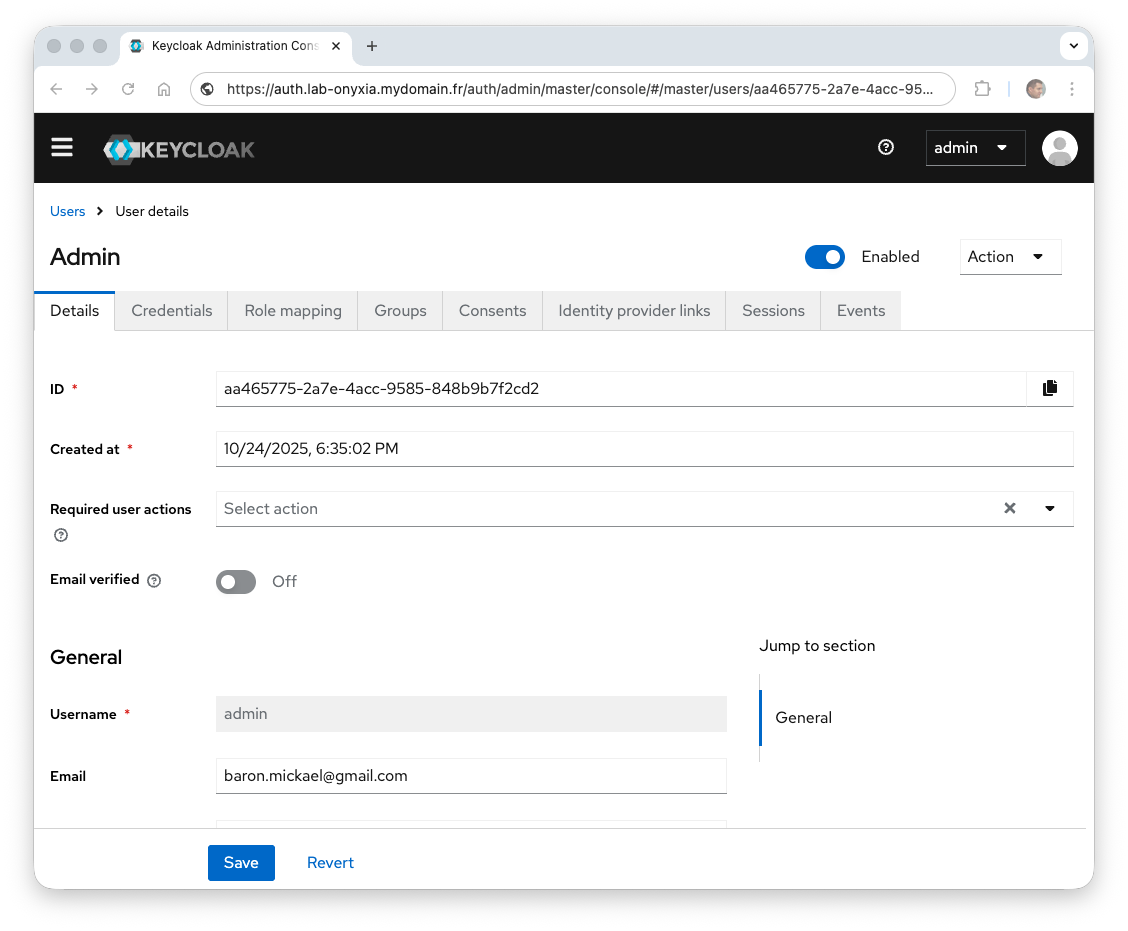
The first thing we will do is create a new administrator account because the keycloak account is temporary (as recommended by Keycloak).
- From the
keycloakrealm, choose the Users menu and create a useradmin(Add User). From the Role Mapping tab, assign theadminrole (Assign role -> Realm roles and selectadmin) and finally change the password via the Credentials tab.
Integrating Keycloak with Onyxia
Let’s now focus on integrating Keycloak with Onyxia so that Keycloak becomes the user account manager for Onyxia. In this first version of the integration, users will be created by the Keycloak administrator, and on-the-fly account creation will be disabled.
- Create a new realm
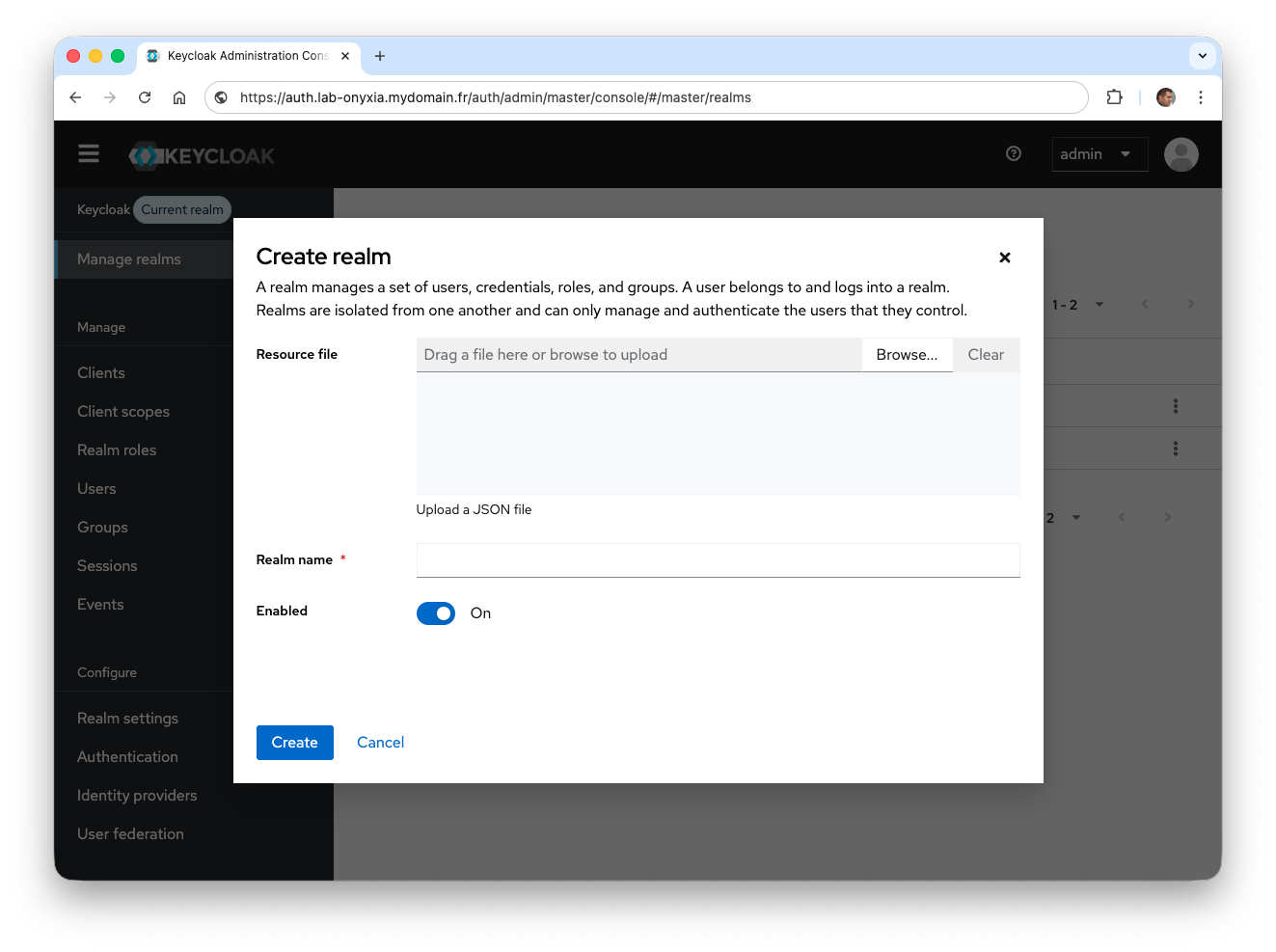
onyxiavia the Manage realms menu. You will need to click on Create realm and enteronyxiain Realm name. To confirm, click Create.
- Select the realm
onyxia
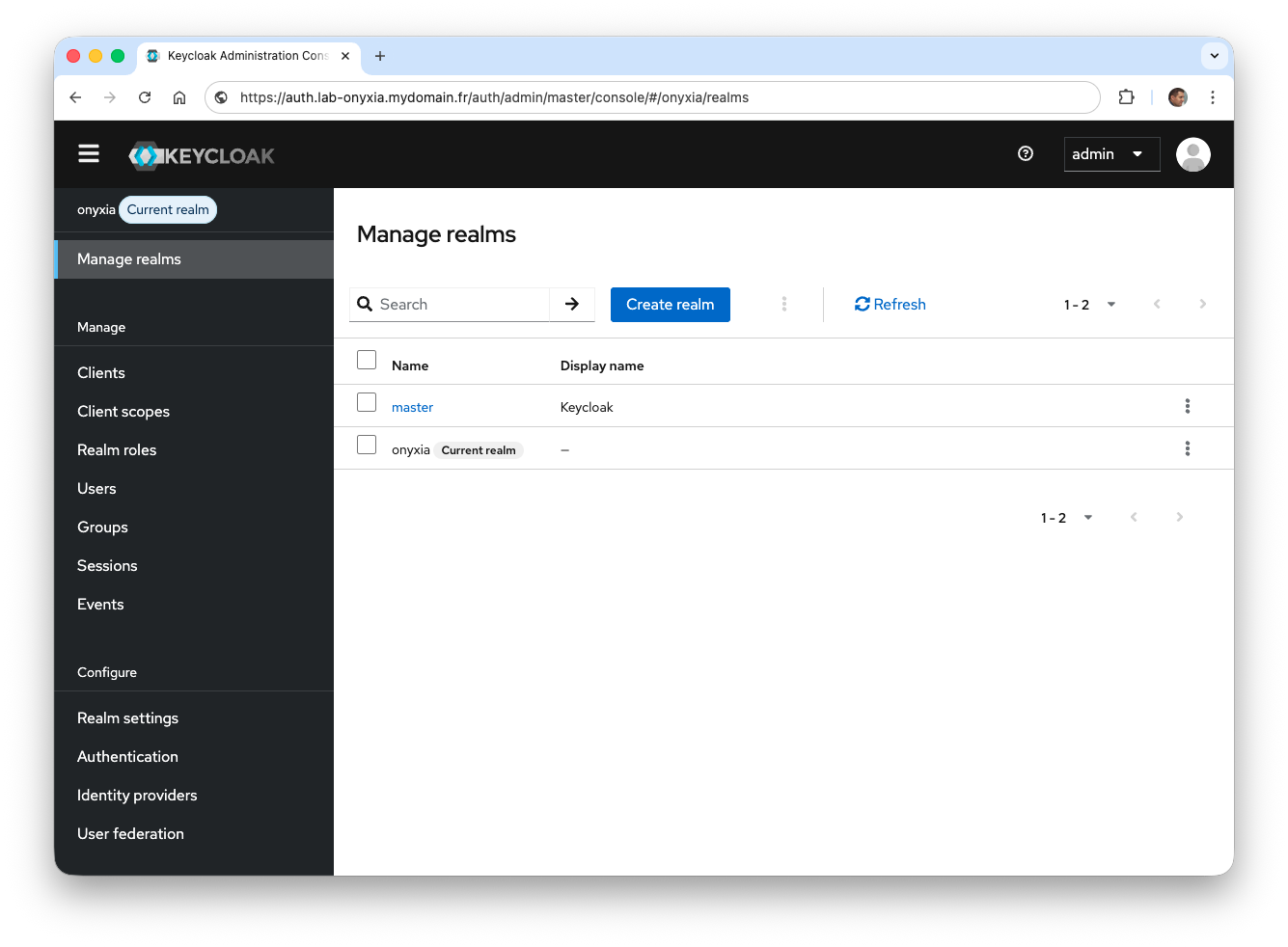
All authorization requests for Onyxia will now be managed from this realm. However, it is necessary to configure it, particularly to set the graphical theme used on the login forms and to determine whether account creation is allowed.
-
From the side menu, click on Realm settings.
-
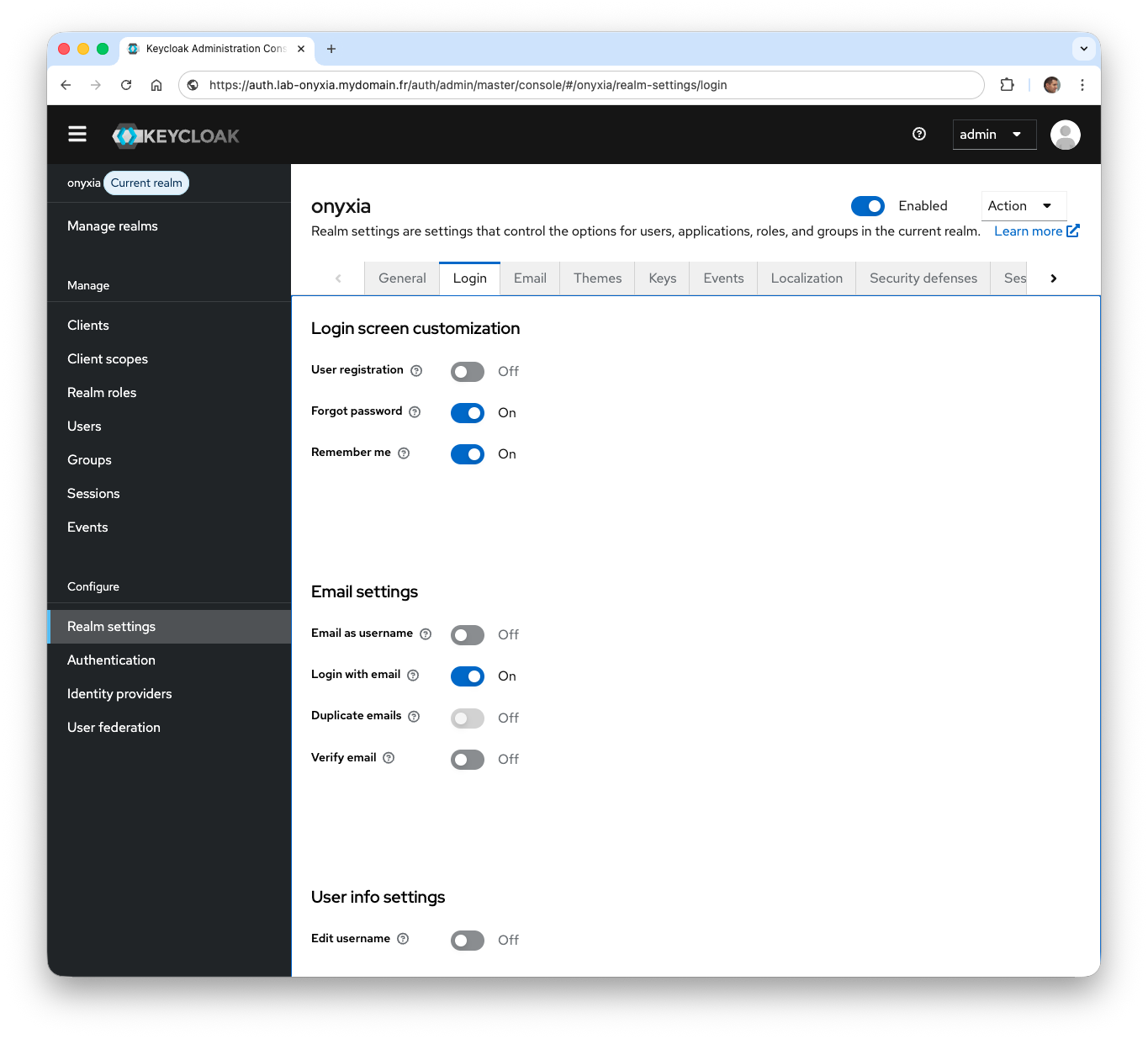
From the Login tab, disable the user creation option (
User registration) to prevent on-the-fly user creation.
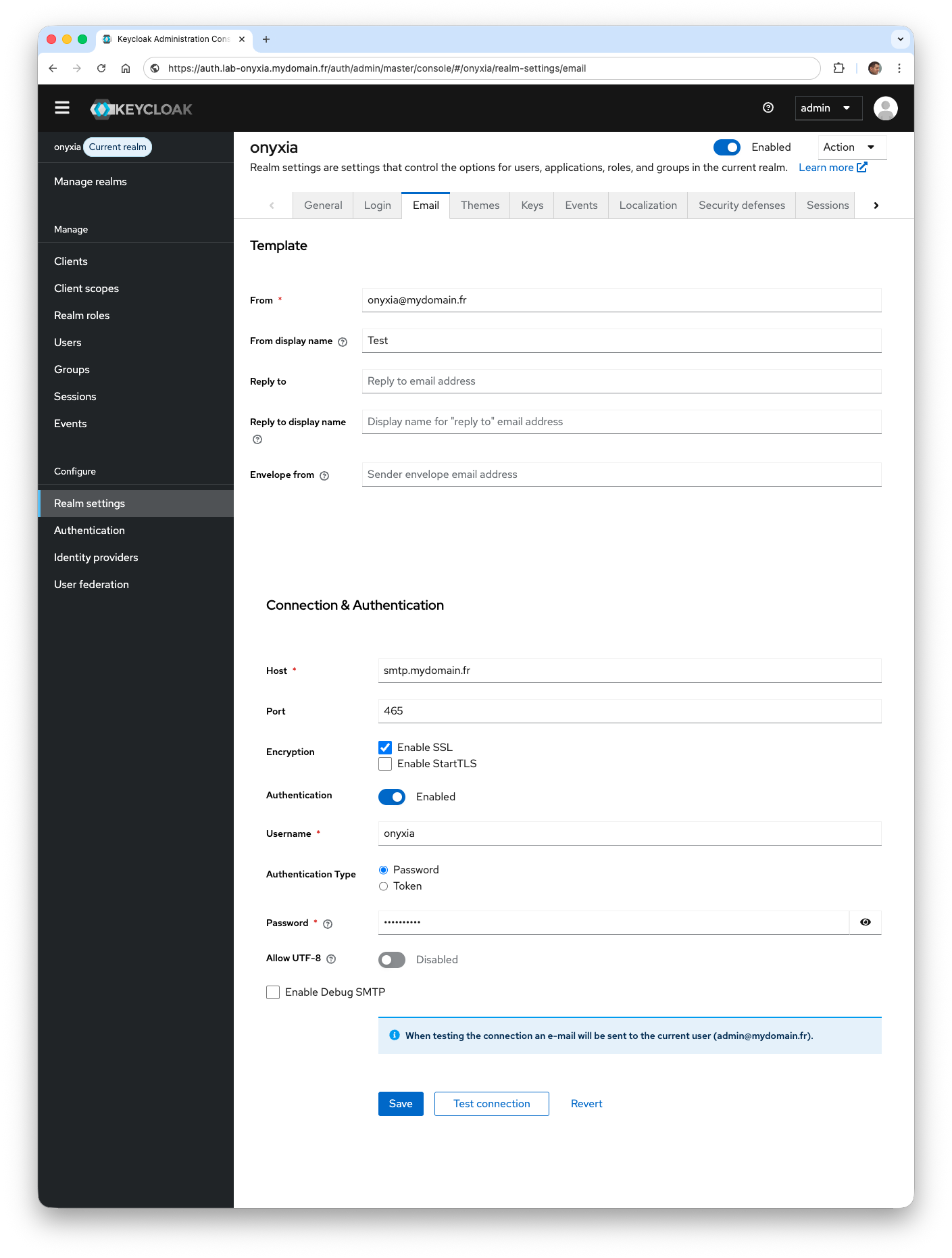
- From the Email tab, configure the information to enable email sending. The parameters to choose depend on the information you have. The Test connection button allows you to check if everything is working correctly.
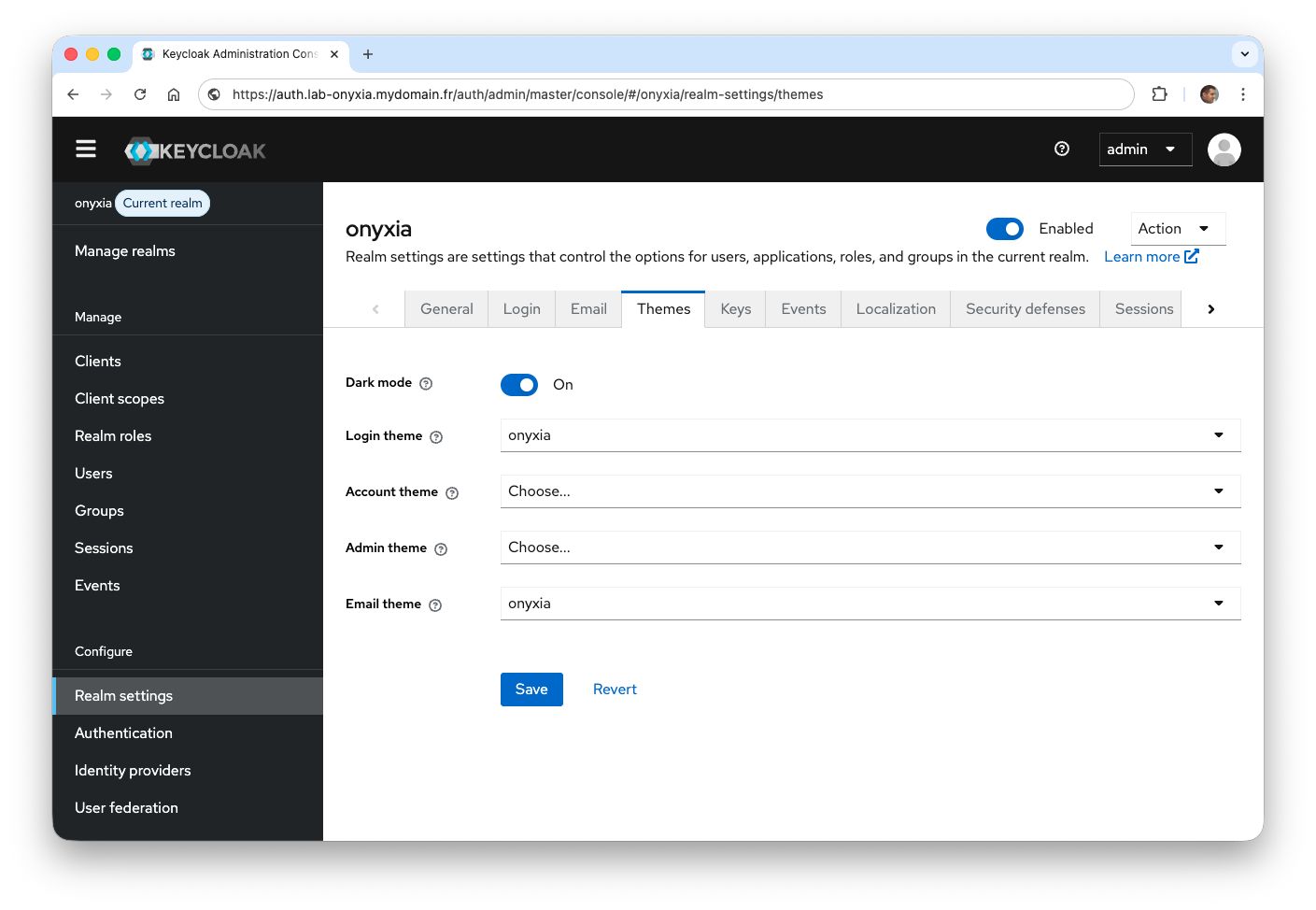
- From the Themes tab, select the theme provided by Onyxia for the Login theme and Email theme fields.
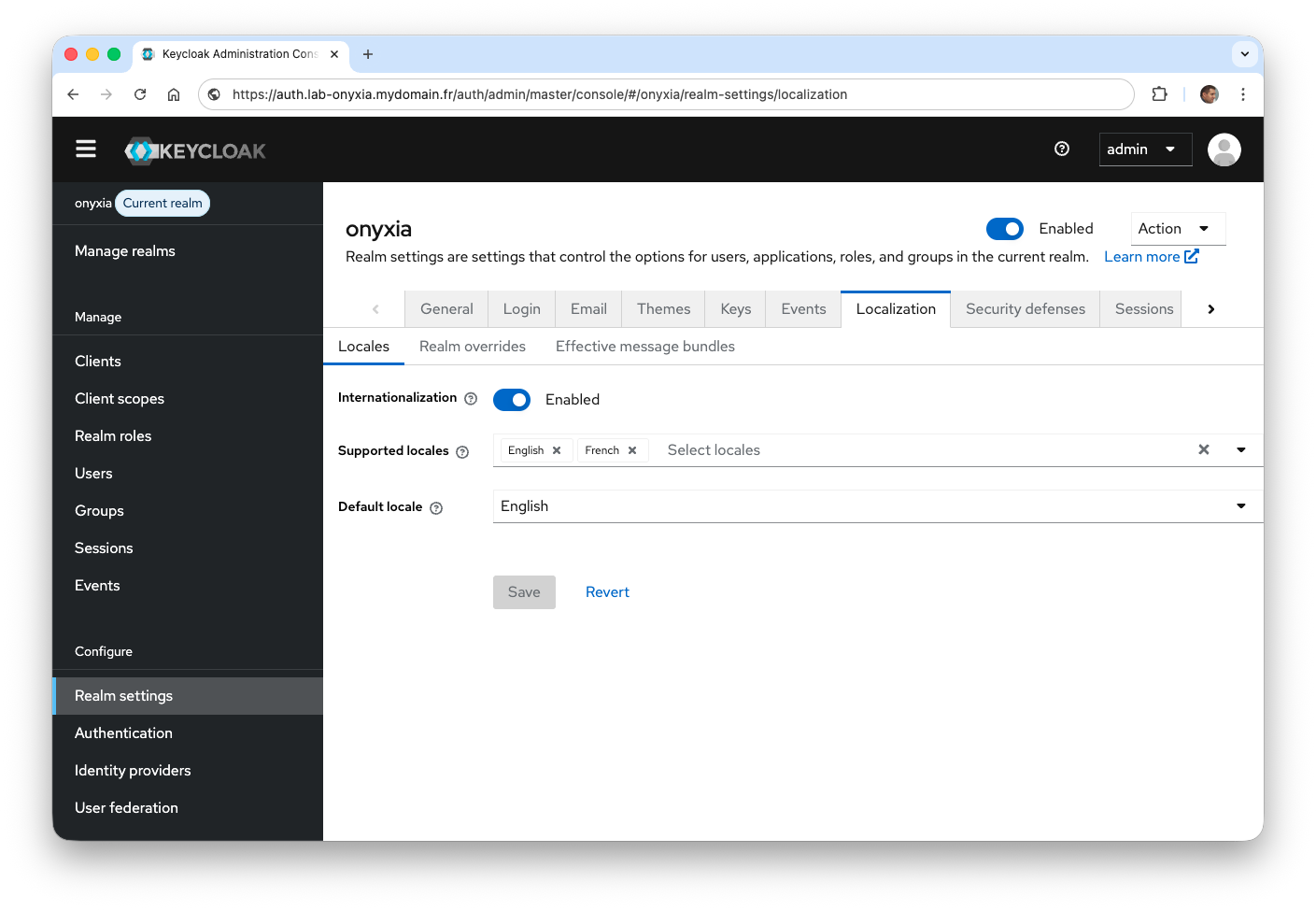
- From the Localization tab, add new languages. The login should support both English and French.
We now need to create a Keycloak client to allow Onyxia to rely on it for authentication and to trust it.
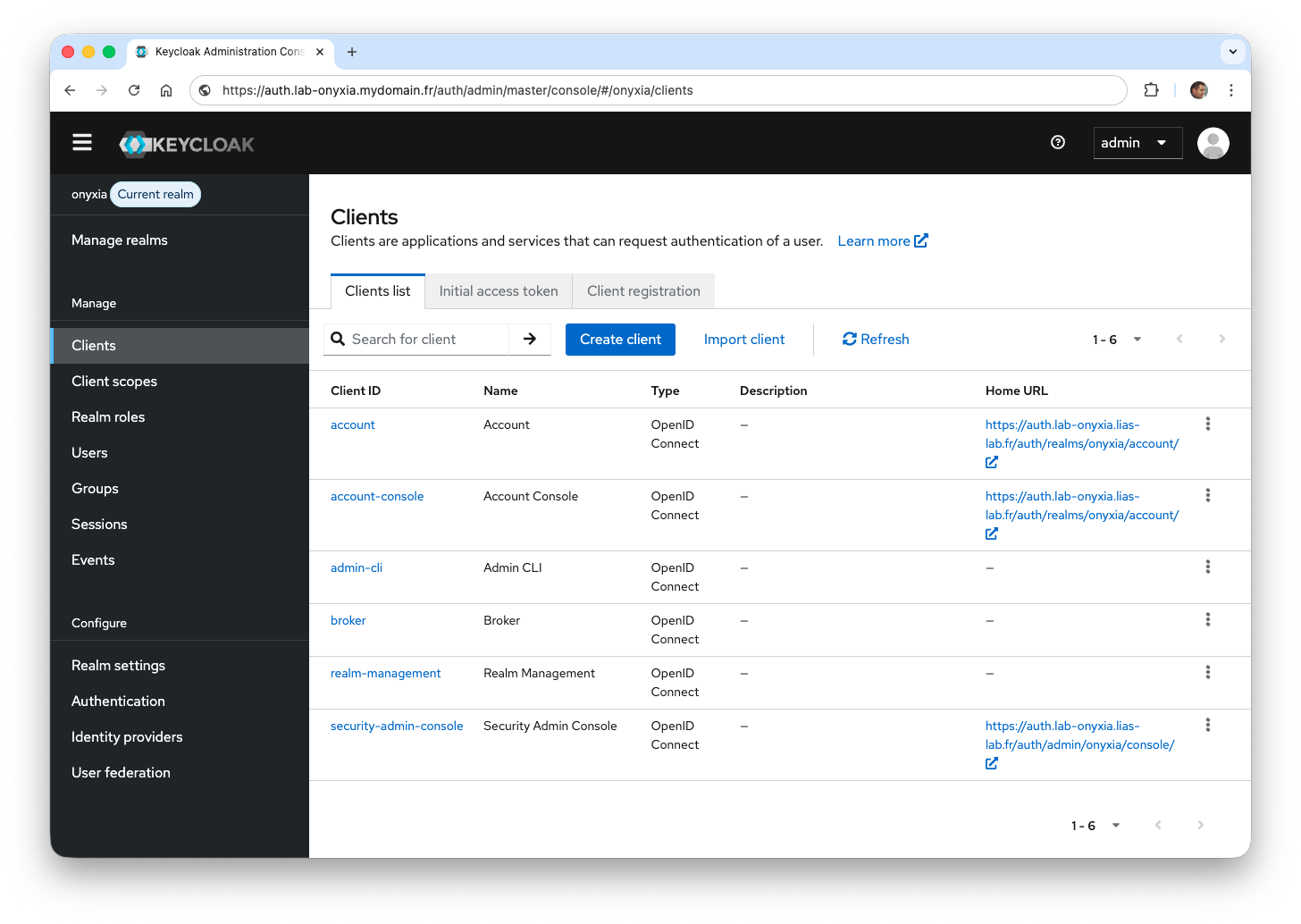
- Create a new client via the Clients menu, then click Create client.
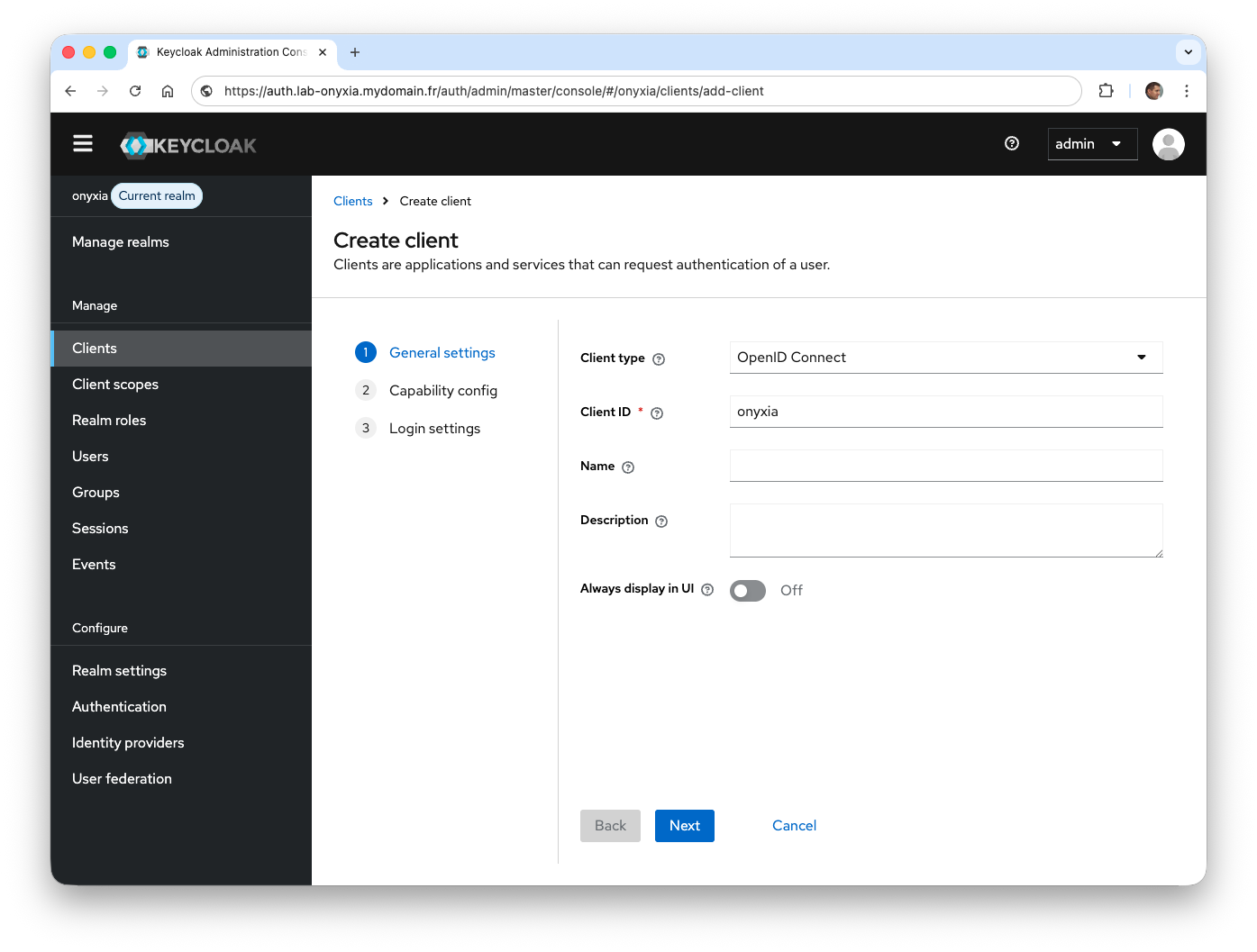
- In the Client ID field, enter the value
onyxia.
- Select the
Direct access grantsoption so that the username and password can be sent to Keycloak to subsequently receive an access token.
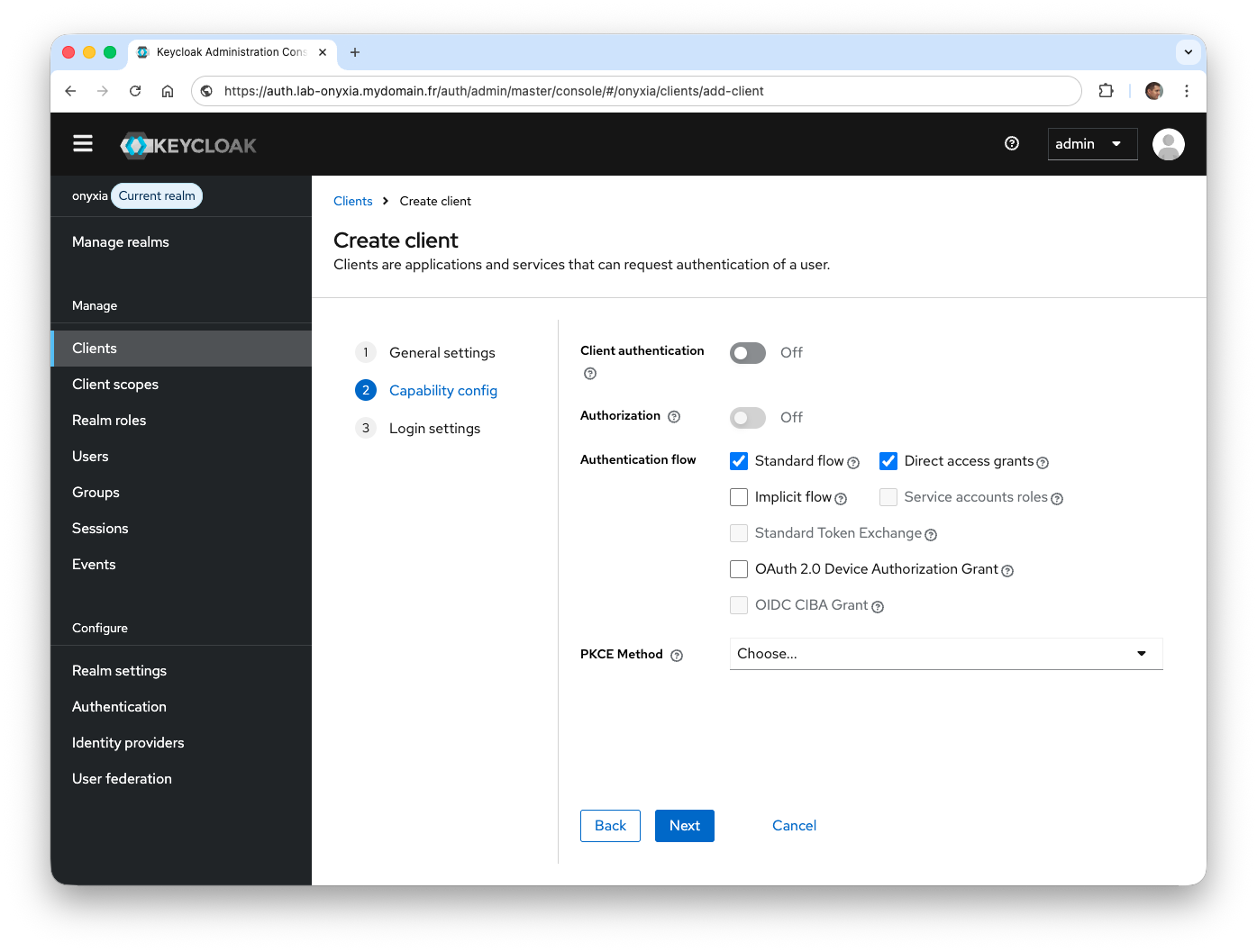
- Enter
https://onyxia.mydomain.frin the Root URL field, then enterhttps://onyxia.mydomain.fr/*in the Valid Redirect URIs field, and finally enter*in the Web Origins field.
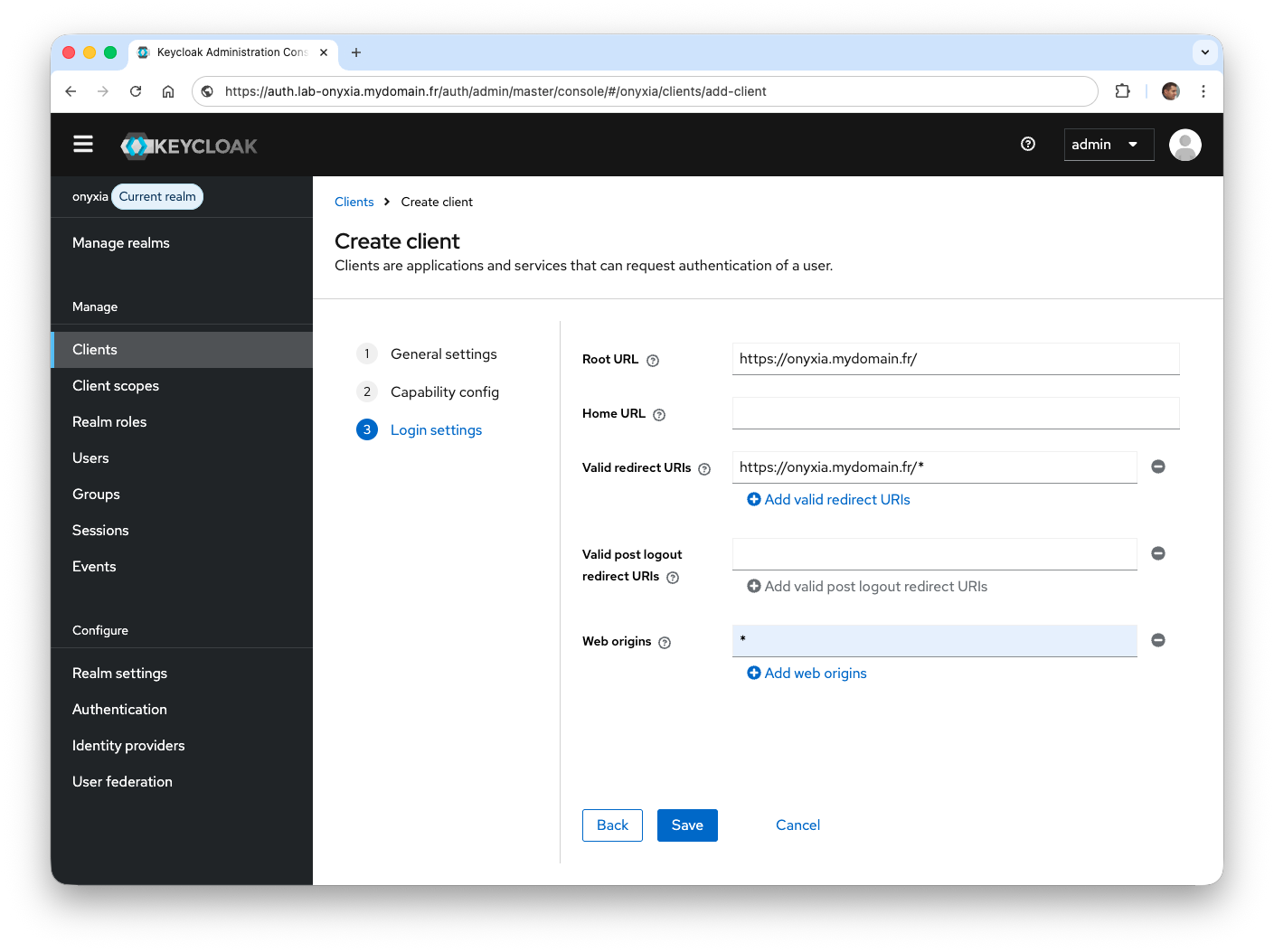
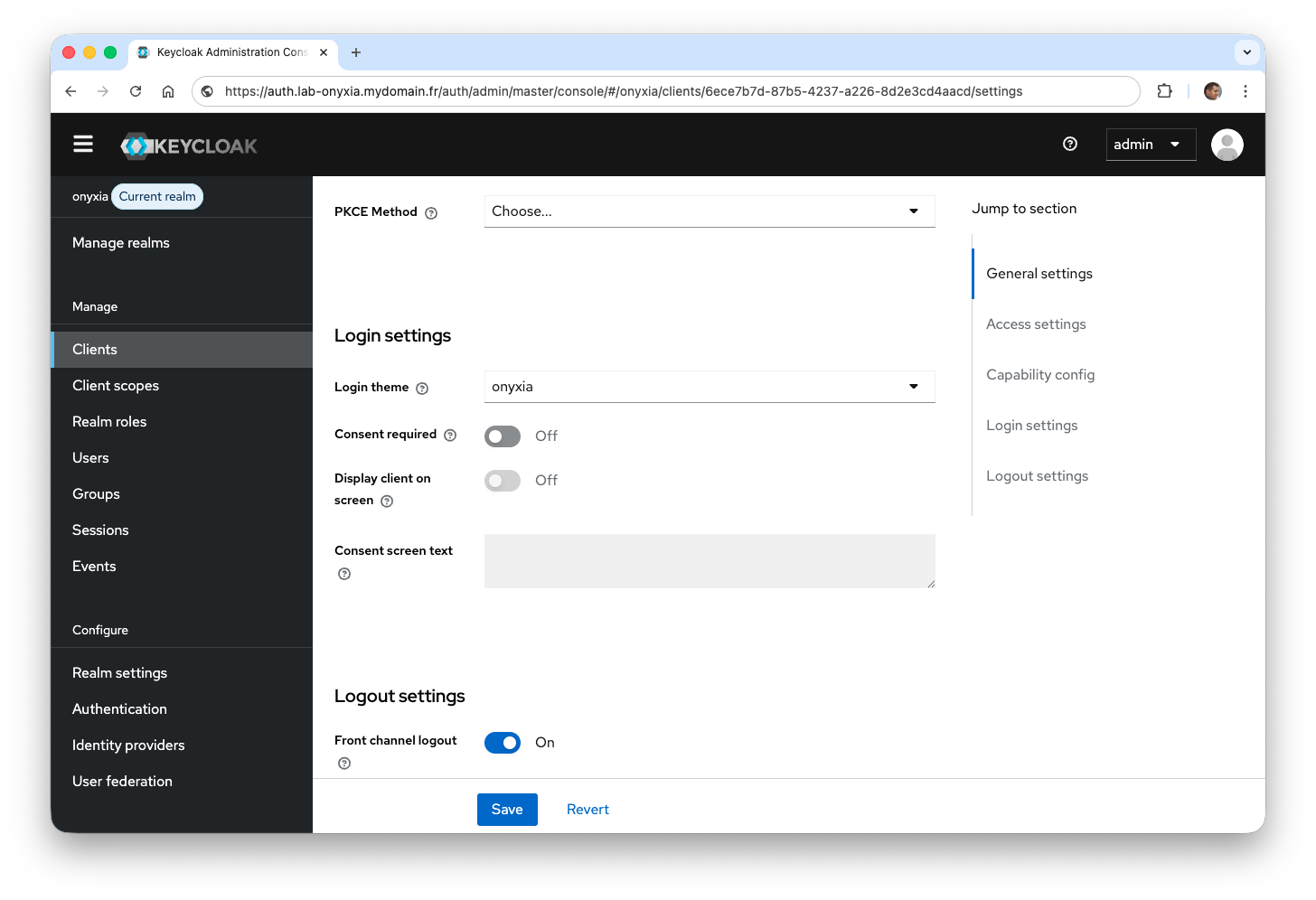
- After creating the client, change the value of the Login theme field by selecting
onyxia.
To test the Keycloak client, you need to create at least one user.
- From Keycloak within the current
onyxiarealm, create a user accounttest
On the Onyxia configuration side, you need to modify the onyxia-values.yaml file to specify the Keycloak client created earlier.
- Modify the onyxia-values.yaml file to add the elements of the
envkey as well as the change for thesingleNamespacevalue. Authentication will be done using OpenID.
1
2
3
4
5
6
7
8
9
10
11
12
13
14
15
16
17
18
19
20
21
22
23
24
25
26
27
28
29
30
31
32
33
34
35
ingress:
  enabled: true
  hosts:
    - host: onyxia.mydomain.fr
web:
  ...
api:
  serviceAccount:
    create: true
    clusterAdmin: true

  env:
    security.cors.allowed_origins: "*"
    authentication.mode: "openidconnect"
    oidc.issuer-uri: "https://auth.lab-onyxia.mydomain.fr/auth/realms/onyxia"
    oidc.clientID: "onyxia"
    oidc.audience: "onyxia"

  regions:
    [
      {
        id: "onyxia_id",
        name: "Onyxia",
        description: "Instance Onyxia de TEST.",
        services: {
          type: "KUBERNETES",
          singleNamespace: false,
          authenticationMode: "serviceAccount",
          namespacePrefix: "onyxia-user-",
          expose: {
            domain: "lab-onyxia.mydomain.fr"
          },
        },
      },
    ]
- Update the Onyxia version.
1
helm update onyxia onyxia/onyxia -f onyxia-values.yaml --version 10.29.2 --create-namespace --namespace onyxia
- From the Onyxia web application, click the Login button (top right) to display the authentication form.
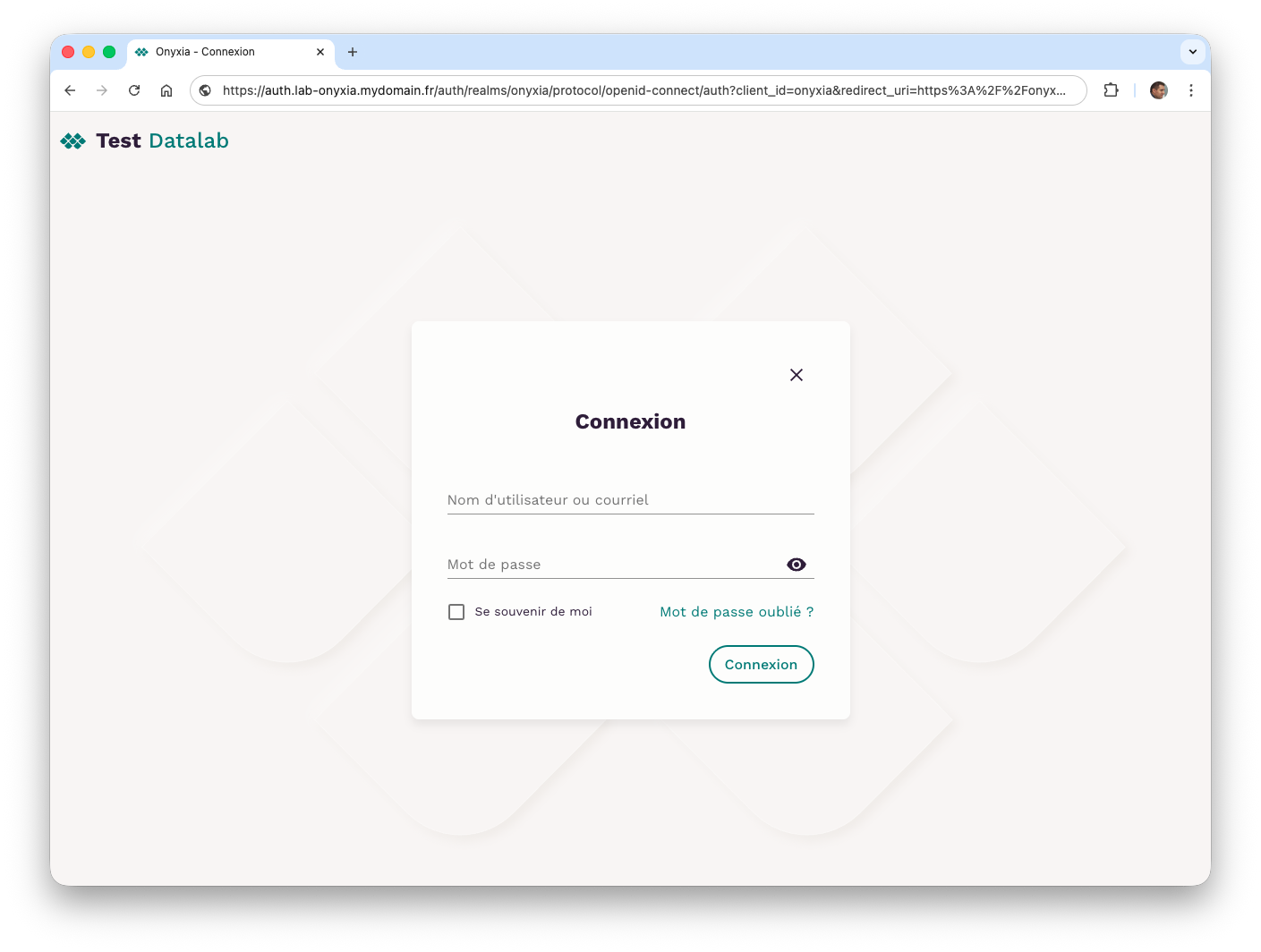
At this stage, Onyxia was able to call the onyxia client from Keycloak since the authentication form is displayed.
- Log in with the user account
testand unfortunately you should get a 401 error.
To understand the error, open the browser’s developer console and look for the request corresponding to the 401 error. In the response header, the Www-Authenticate key should return this error: Bearer error="invalid_token", error_description="An error occurred while attempting to decode the Jwt: The required audience onyxia is missing", error_uri="https://tools.ietf.org/html/rfc6750#section-3.1". This indicates that the JWT token (provided by OpenID) does not contain the value onyxia in the aud key. The onyxia realm configuration in Keycloak must be modified.
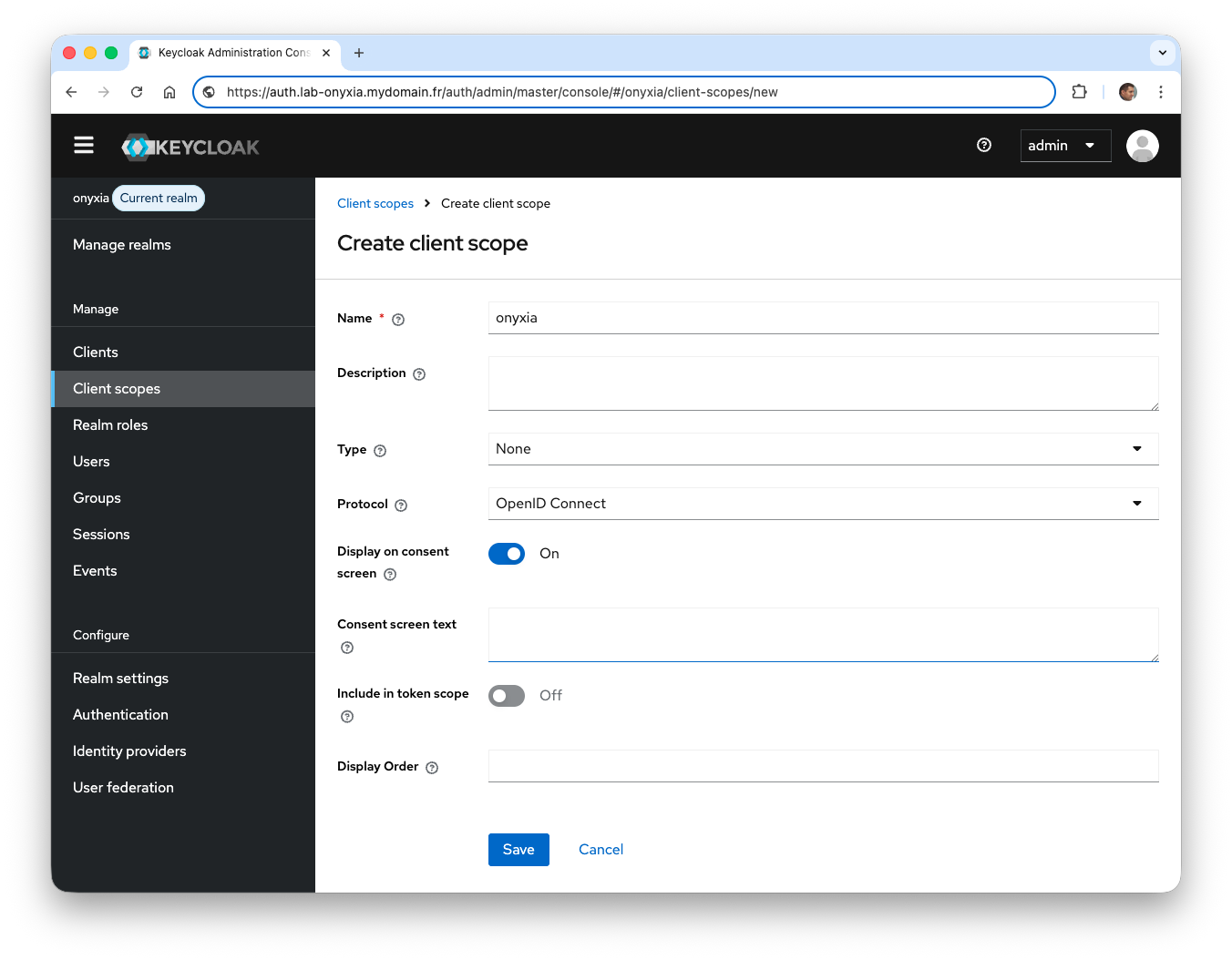
- From the side menu, click on Client scopes and then on Create client scope. In the
Namefield, enter the valueonyxia.
-
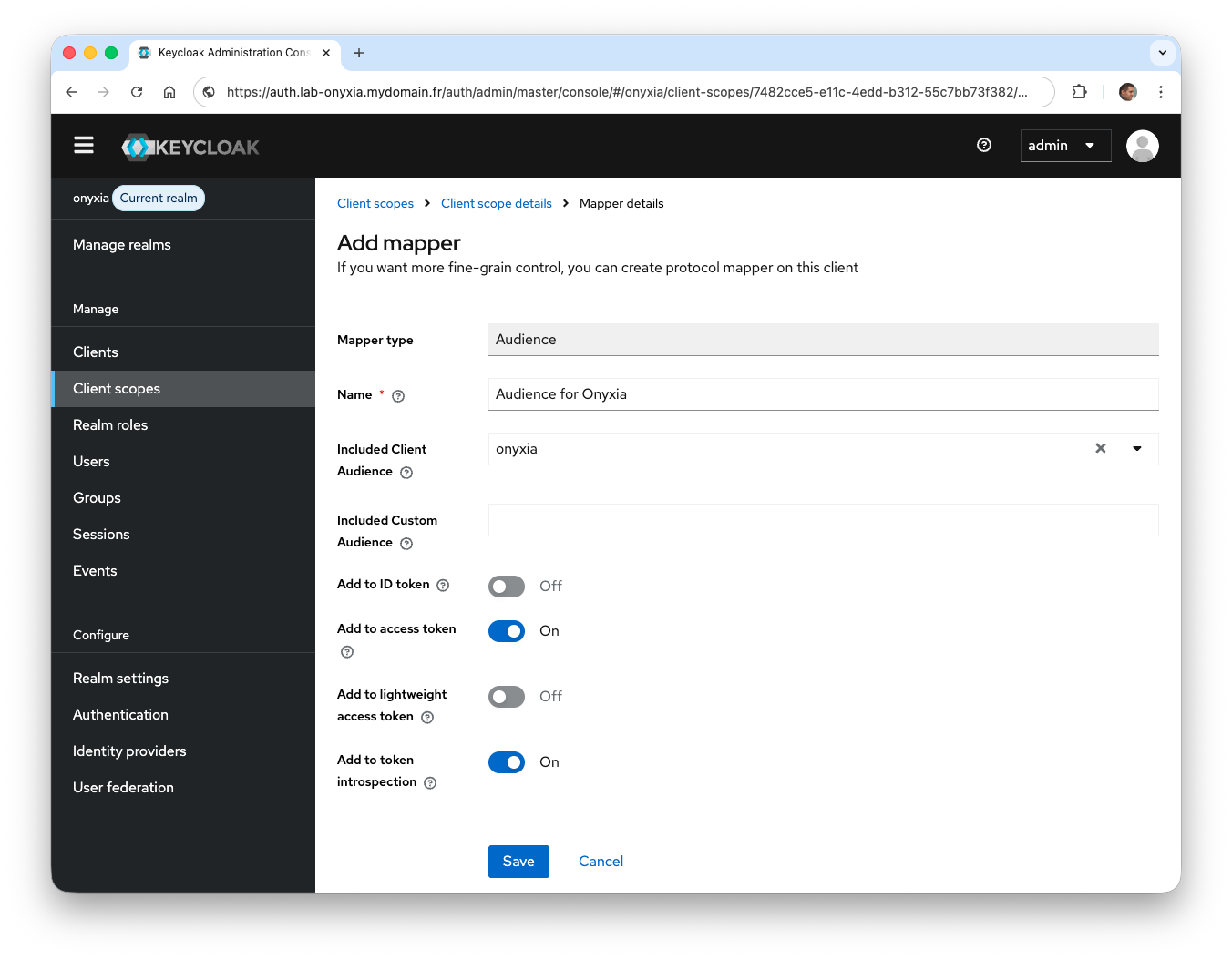
Once created, select the Mappers tab, then click Configure a new mapper and choose
Audience. -
In the
Namefield, enter the valueAudience for Onyxiaand in theIncluded Client Audiencefield, selectonyxia, then clickSave.
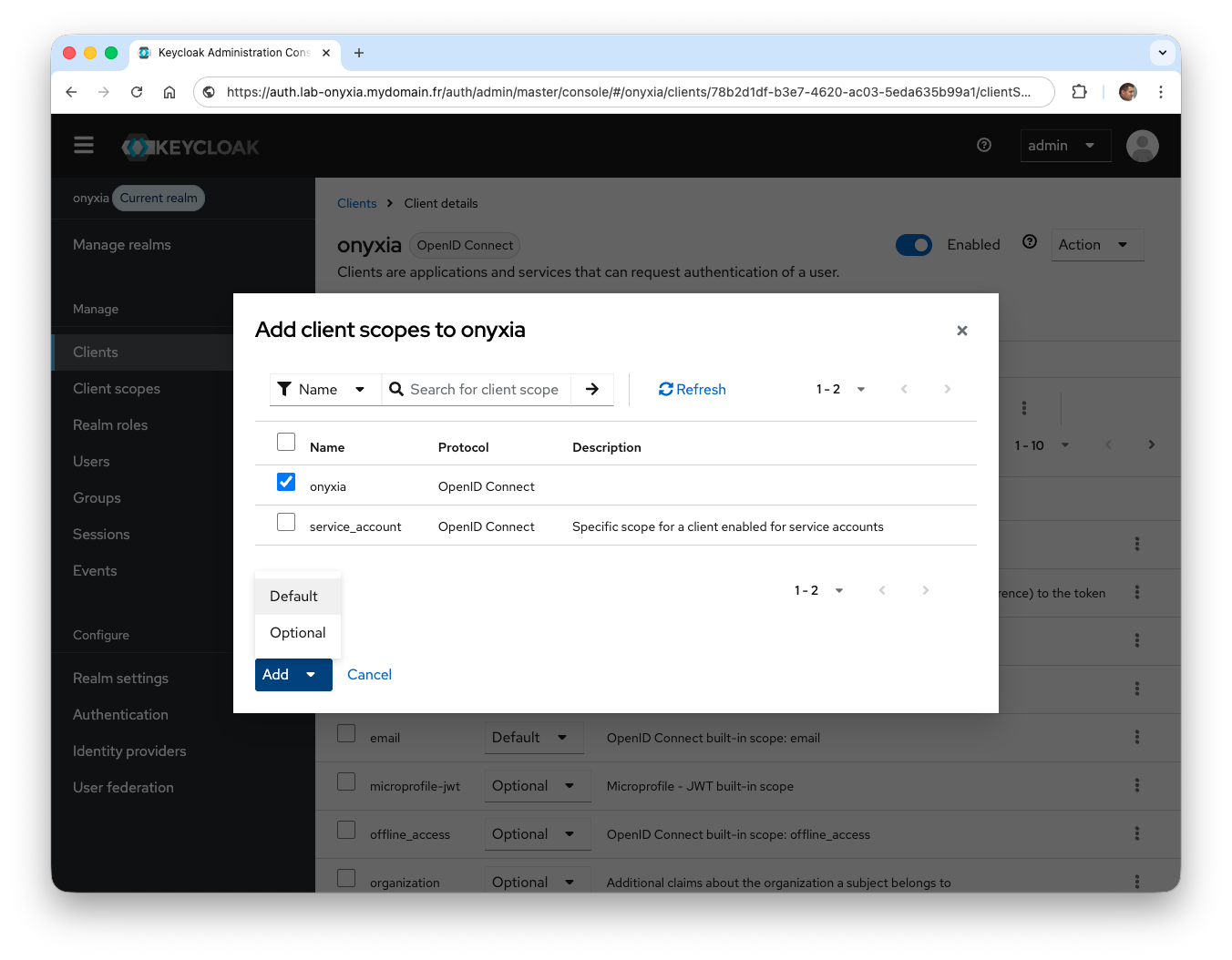
The next step is to add this new configuration to the onyxia client in Keycloak
- From the side menu, click on Clients and select
onyxia. From the Client scopes tab, click Add client scope and selectonyxia.
It is possible to check the contents of the JWT token directly from Keycloak by specifying an available user in the database.
- From the side menu, click on Clients and select the
onyxiaclient. From the Client scopes tab, select the Evaluate sub-tab. In the Users field, enter
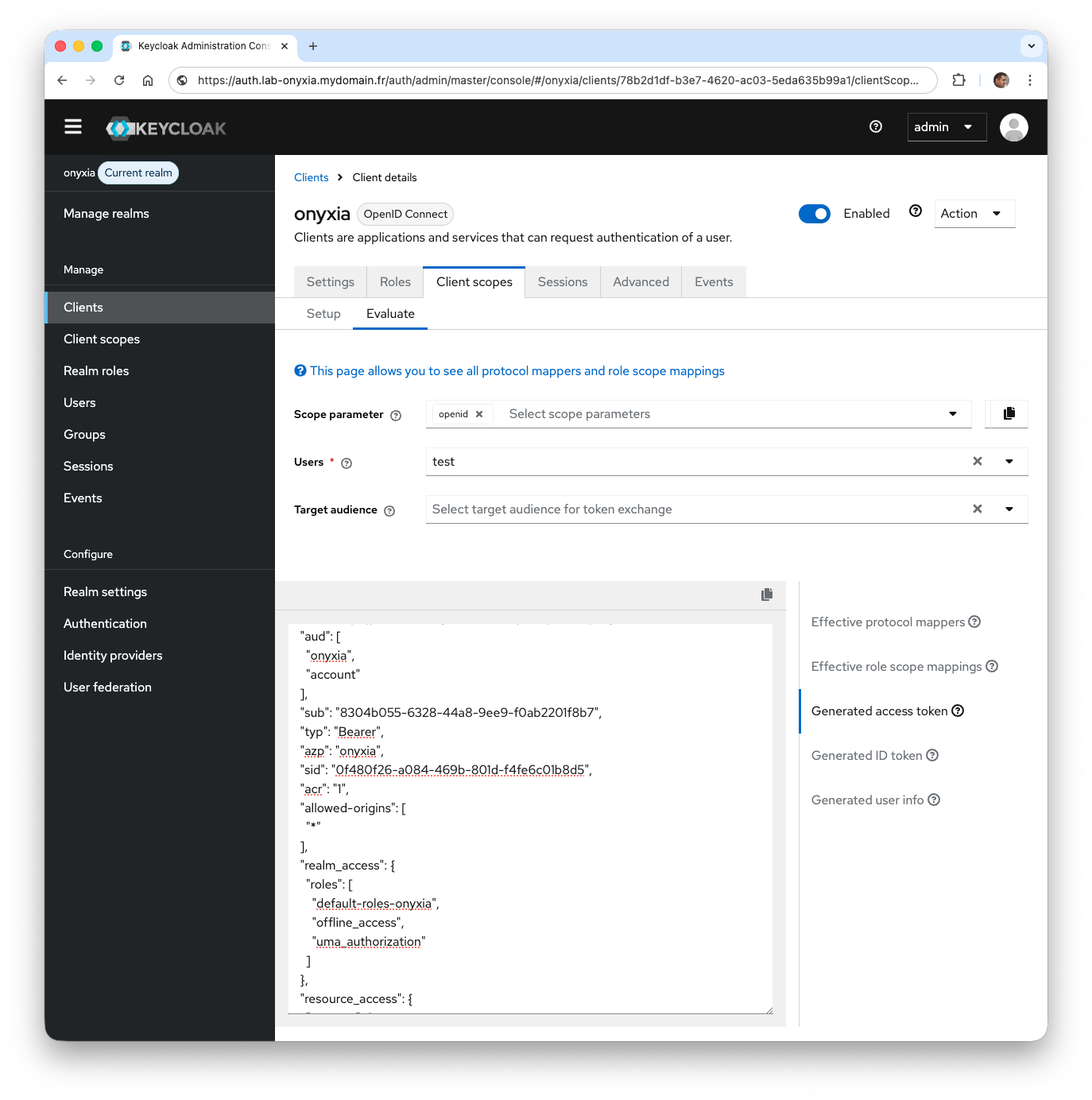
As you can see, the aud key contains two values: onyxia and account.
- From the Onyxia web interface, log in, and you should not get any errors.
Configuring an OpenID identity provider in Keycloak
In the previous section, we presented the use of Keycloak with users created directly by the Keycloak administrator. In this section, we will show how to integrate an external OpenID identity provider. In this scenario, people accessing Onyxia can either come from the existing information system (via the external OpenID identity provider) or from local accounts manually created by the Keycloak administrator.
Regarding the external OpenID identity provider, I will use the one provided by the host of the services I deploy. Of course, it is possible to use other providers, such as those offered by Google or Meta. Whatever OpenID identity provider is chosen, three pieces of information will be required to configure Keycloak:
- Endpoint URL: the address of the identity provider (OpenID Provider) exposing the necessary access points for authentication (https://auth-cas.mydomain.fr/authentification/oidc/.well-known);
- Client ID: the public identifier of the application registered with the identity provider (not secret as it is available on the client);
- Client secret: password associated with the Client ID (do not disclose and only Keycloak will store it).
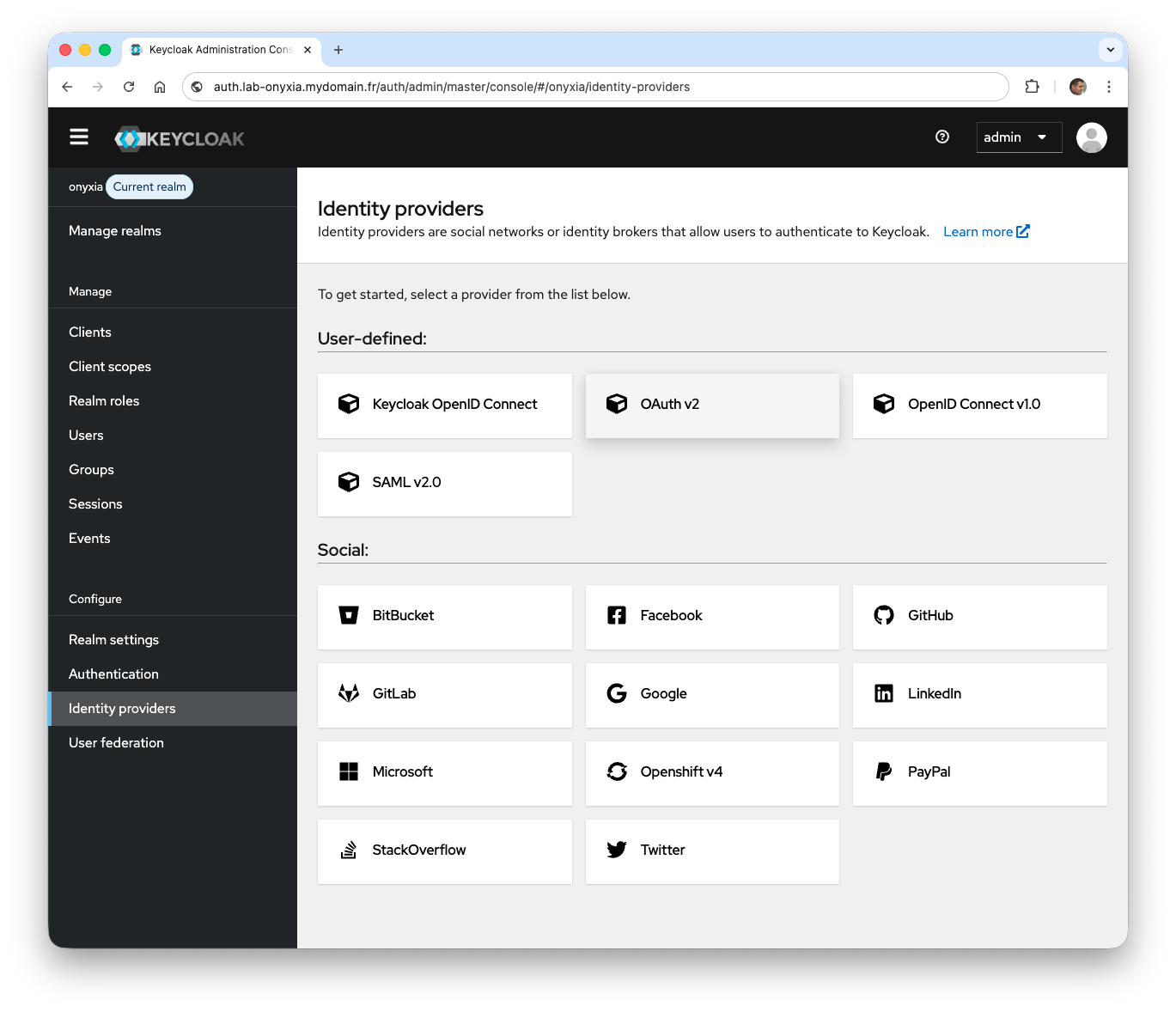
- From the side menu, click on Identity Providers and select the
OpenID Connect v1.0provider.
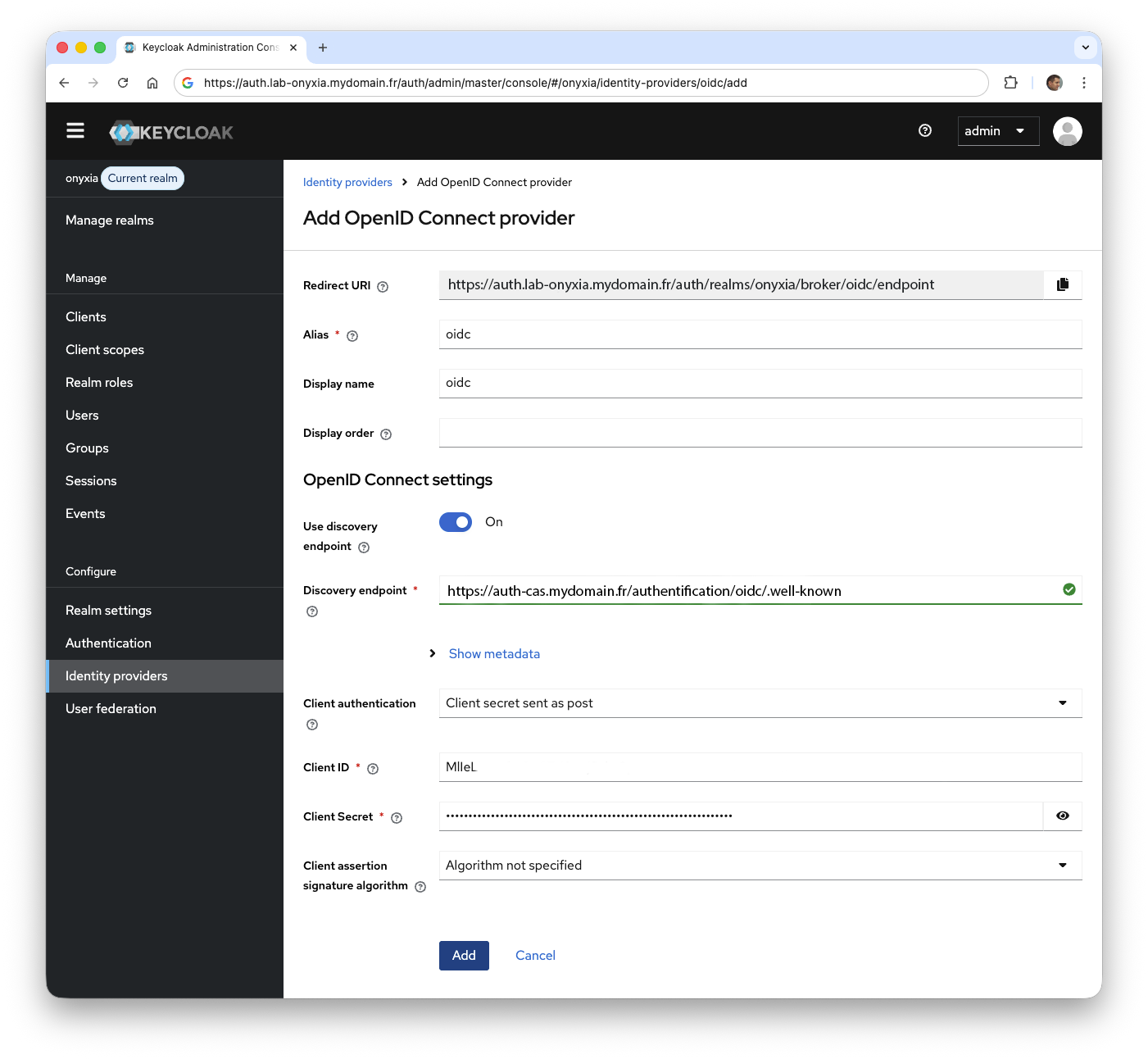
- Enter
oidcin the Alias and Display Name fields. In the Discovery endpoint field, provide the endpoint URL. Finally, fill in the Client ID and Client Secret fields.
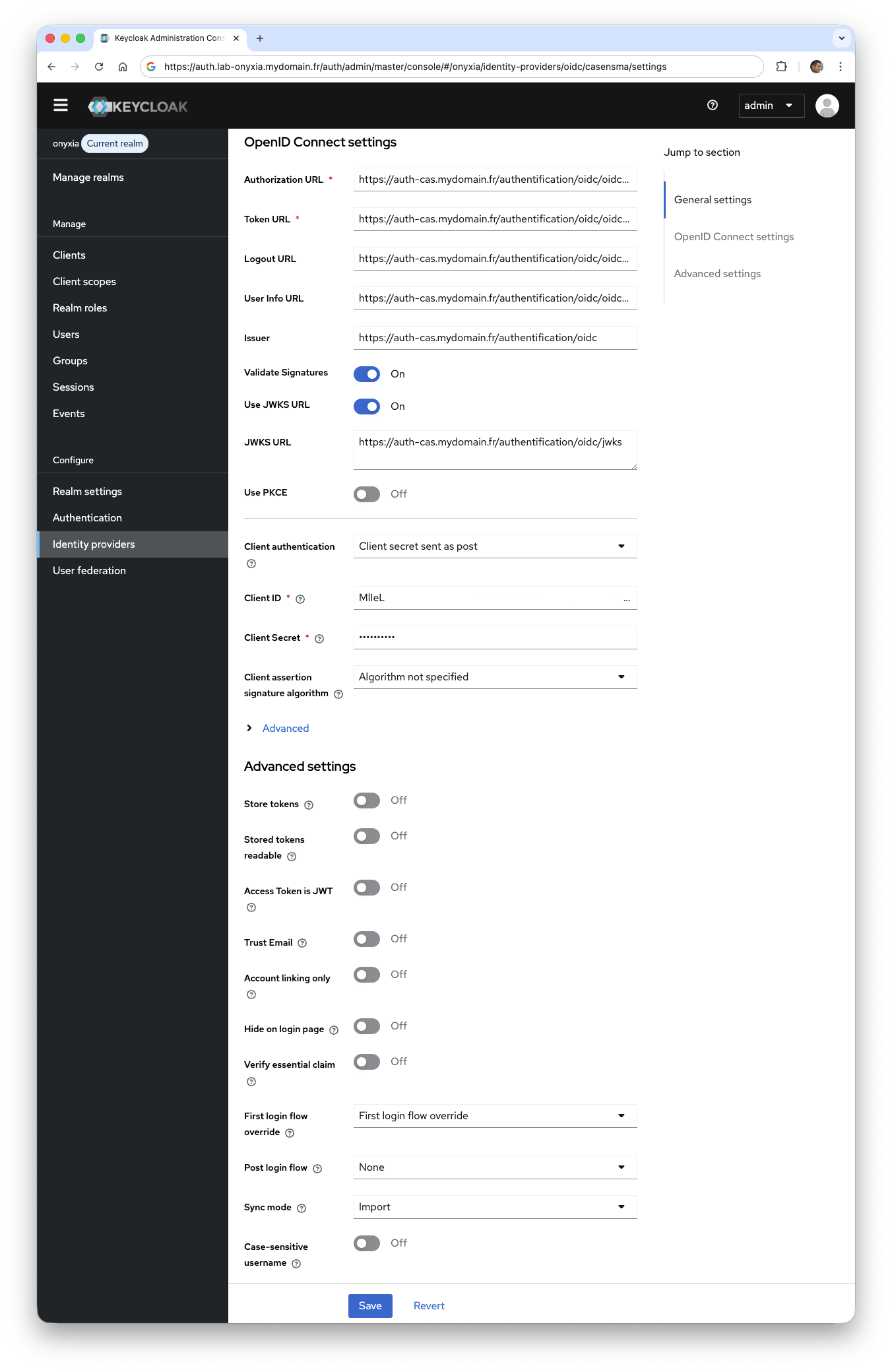
- In the Sync mode dropdown, select
Import. This way, the account information will be imported only once when the user is created. You can also use theForcemode, which updates the account information at each new login.
- To verify that everything is working, you can check the following URL: https://auth.lab-onyxia.mydomain.fr/auth/realms/onyxia/.well-known/openid-configuration
The response provides information that allows, among other things, determining which attributes are returned by the OpenID identity provider:
1
2
3
4
5
6
7
8
9
10
11
12
  "claims_supported": [
    "aud",
    "sub",
    "iss",
    "auth_time",
    "name",
    "given_name",
    "family_name",
    "preferred_username",
    "email",
    "acr"
  ]
At this stage of configuration, during the authentication phase, you can do this either by using the newly configured OpenID identity provider or by using accounts manually created by the Keycloak administrator.
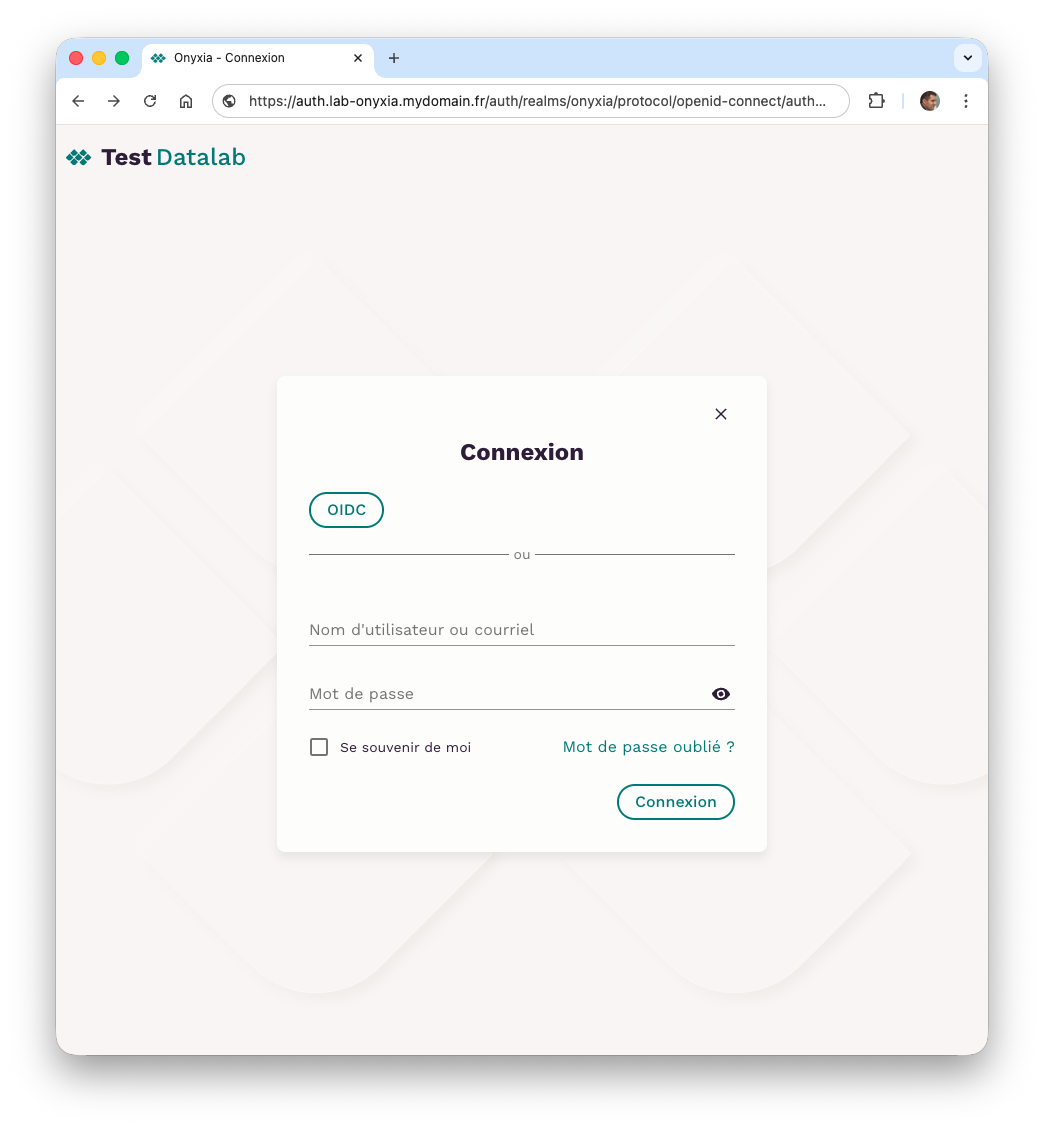
When you choose authentication via the OpenID identity provider, you will see a form asking you to fill in the required information.
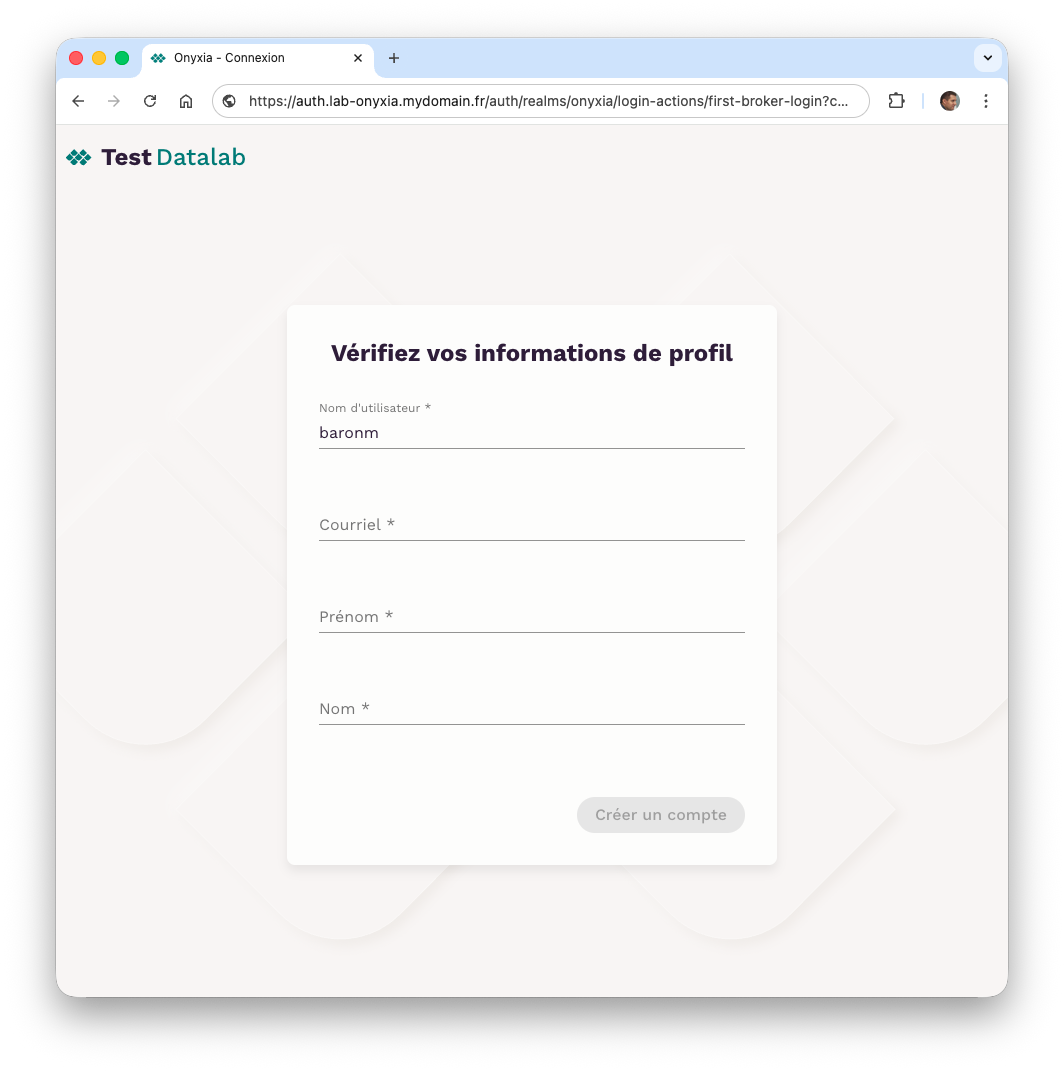
The reason is that our OpenID identity provider groups user information in an attributes object because it relies heavily on LDAP. As a result, Keycloak cannot create a user with minimal information (userName, email, firstName, and lastName).
In the following, we will show how to map attributes from the provider (claims) contained in an attributes object to attributes in the Keycloak user model.
1
2
3
4
5
6
7
"attributes": {
  "uid": ["baronm"],
  "displayName": ["Mickaël BARON"],
  "givenName": ["Mickaël"],
  "sn": ["BARON"],
  "email": ["mickael.baron@ensma.fr"]
}
- Edit the OpenID identity provider configuration and select the Mappers tab.
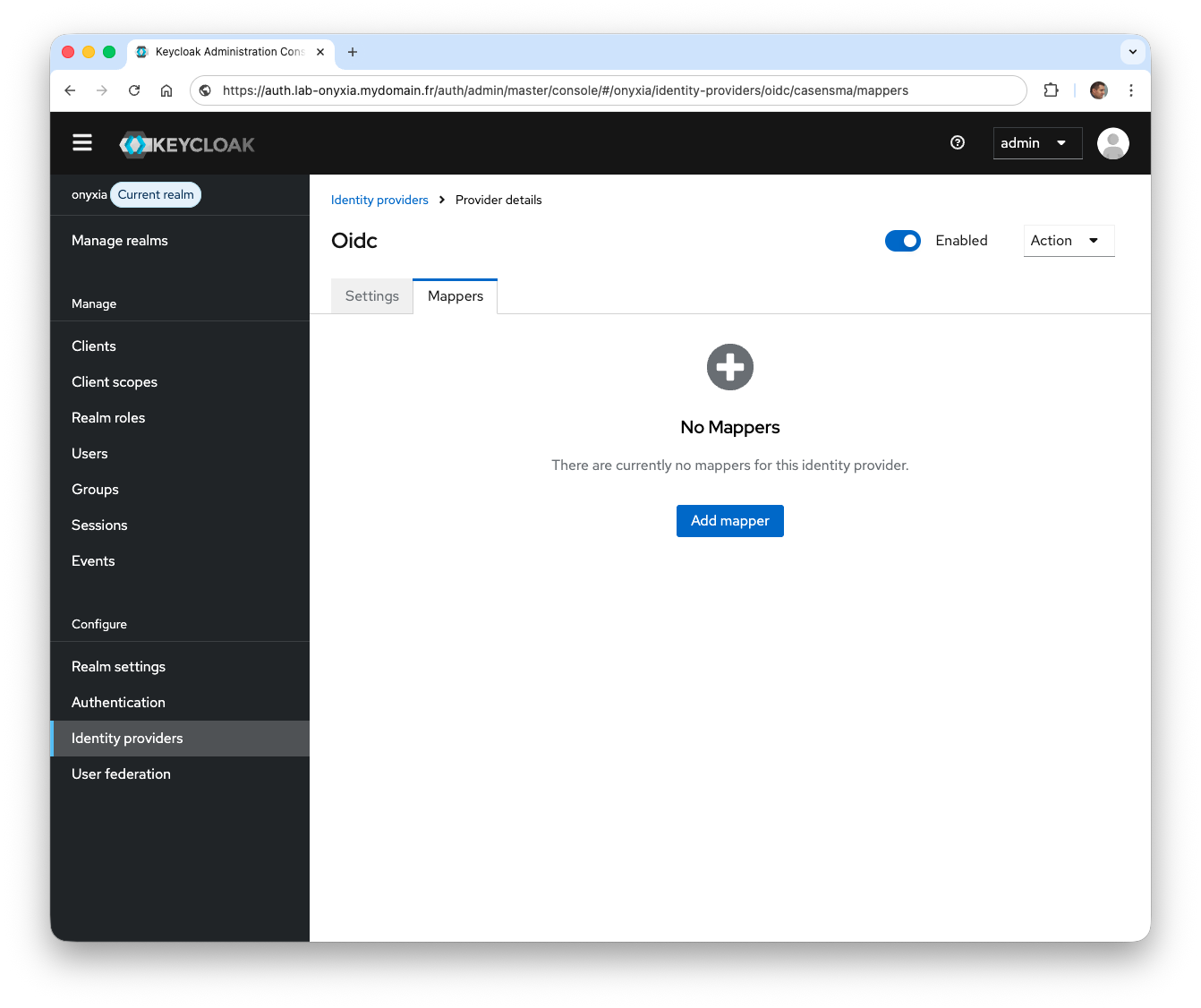
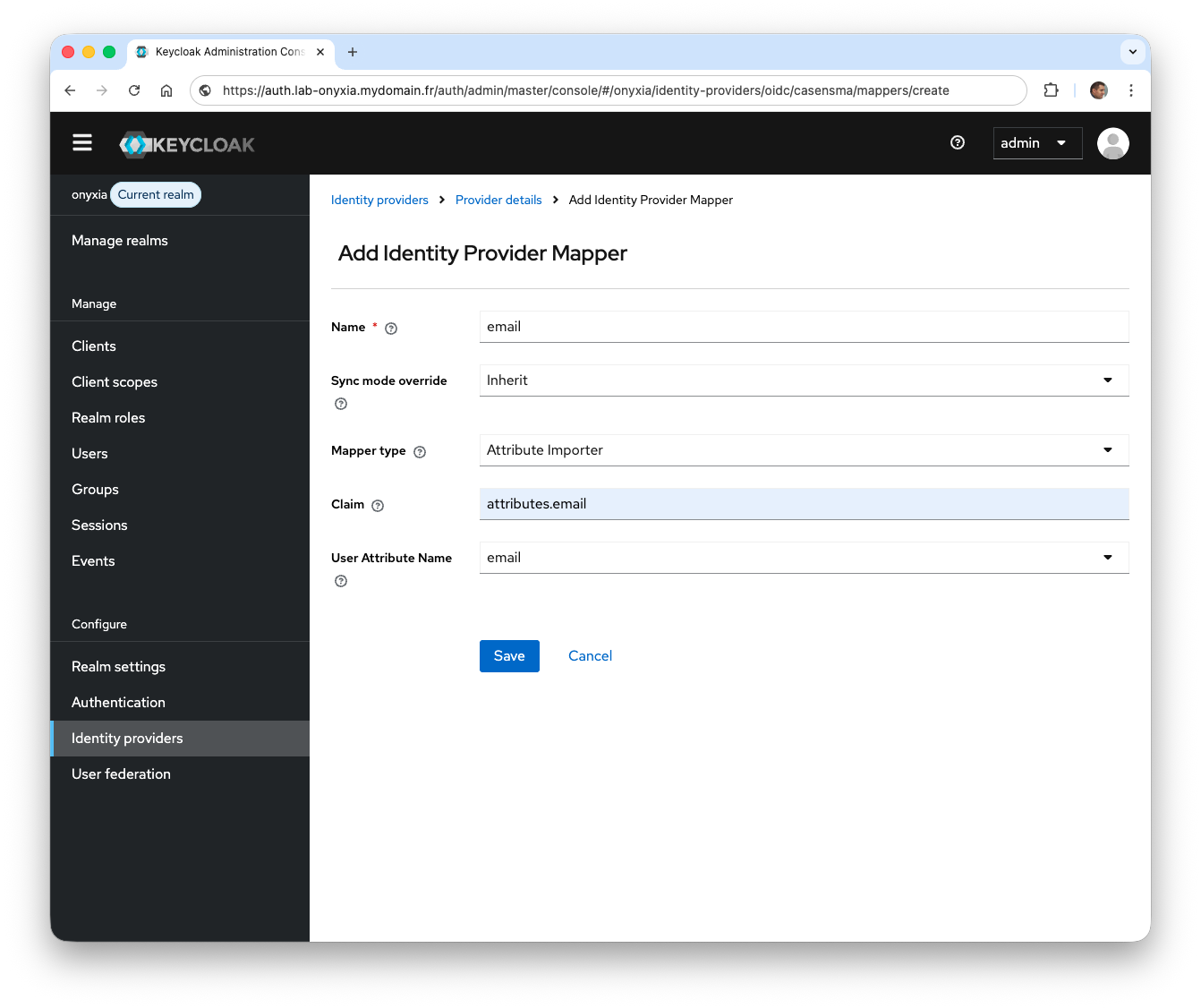
- Click Add mapper, enter
emailin the Name field, selectAttribute Importeras the Mapper Type, enterattributes.emailin the Claim field, and enteremailin the User Attribute Name dropdown.
- Procéder de la même façon pour les attributs
firstNameetlastName.
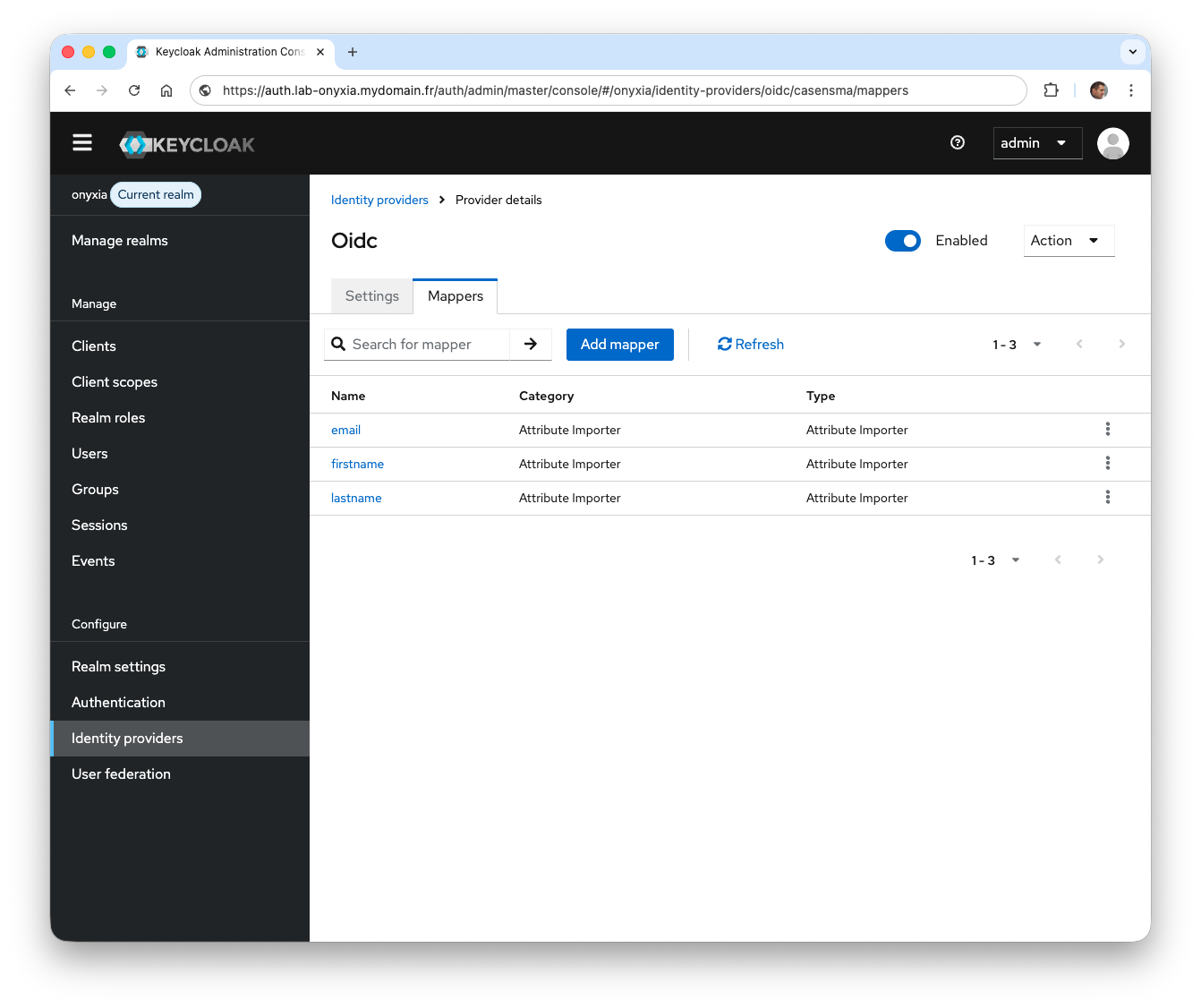
Verify that the configuration is working by authenticating via the OpenID identity provider. At the end of this process, a new user will be created directly in Keycloak. The userName, email, firstName, and lastName information will come from the OpenID service provider.
Conclusion
In this first post, we laid the foundations for deploying Onyxia in an on-premises Kubernetes environment. After a deliberately simple installation of the platform, we gradually introduced user management and authentication using Keycloak. This incremental approach helps to better understand each component, their interactions, and the essential configuration points.
We have thus seen how to:
- deploy Onyxia via Helm and customize its interface;
- install and configure Keycloak as an identity manager;
- integrate Onyxia with Keycloak via OpenID Connect;
- manage audiences and JWT tokens;
- federate an external OpenID identity provider;
- and correctly map user attributes when they are not exposed in a standard way.
This first step already provides a fully functional Onyxia platform, secure and integrated with an authentication system.
In the next post, we will see how to define specific rights per user in order to finely control access to critical resources, particularly GPUs. For this, we will use the concept of roles in Onyxia.
Je suis Mickaël BARON Ingénieur de Recherche en Informatique à l'ISAE-ENSMA et membre du laboratoire LIAS le jour
Veilleur Technologique la nuit
#Java #Container #VueJS #Services #WebSemantic

Derniers articles et billets
Vous pouvez laisser un commentaire en utilisant les Github Issues.